After the first FAQ post, a few more common questions came up in discussions, so here’s another quick roundup.
If you’ve run into any of these before, these tips should help you get great results more quickly and confidently.
I want to print larger designs. What’s the maximum size?
The maximum printable width supported by the D2 is 330 mm. Printing at the absolute maximum width is usually not recommended. Wider prints can make powder shaking, curing, and heat pressing more difficult during later steps.
For most workflows, around 12.8 inches is generally the most practical maximum width.
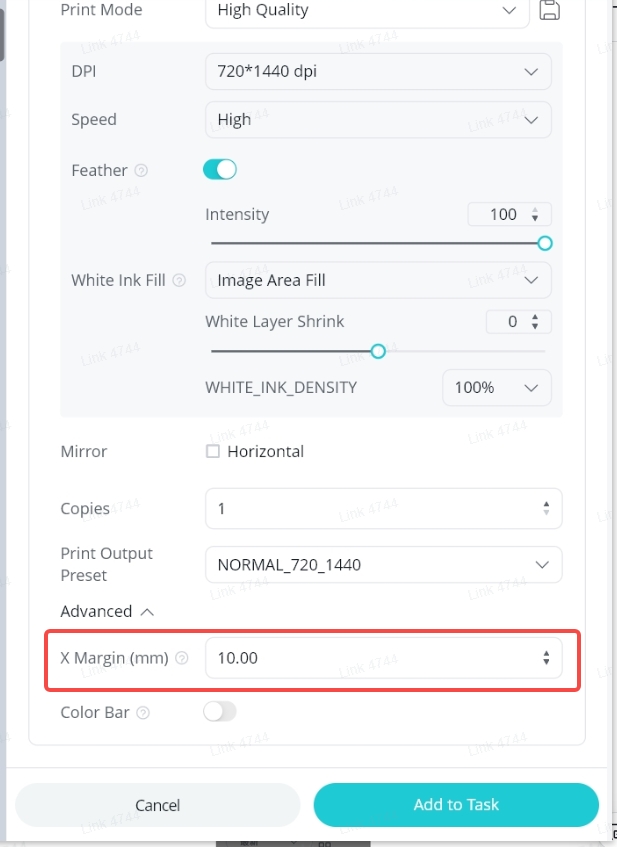
If you’d like to gain a little more printable area, there are two settings worth checking in IdeaStudio:
- Reduce the X Margin value in the print settings.
- Place the design as close to the left side of the canvas as possible.
Can I adjust white ink density in IdeaStudio?
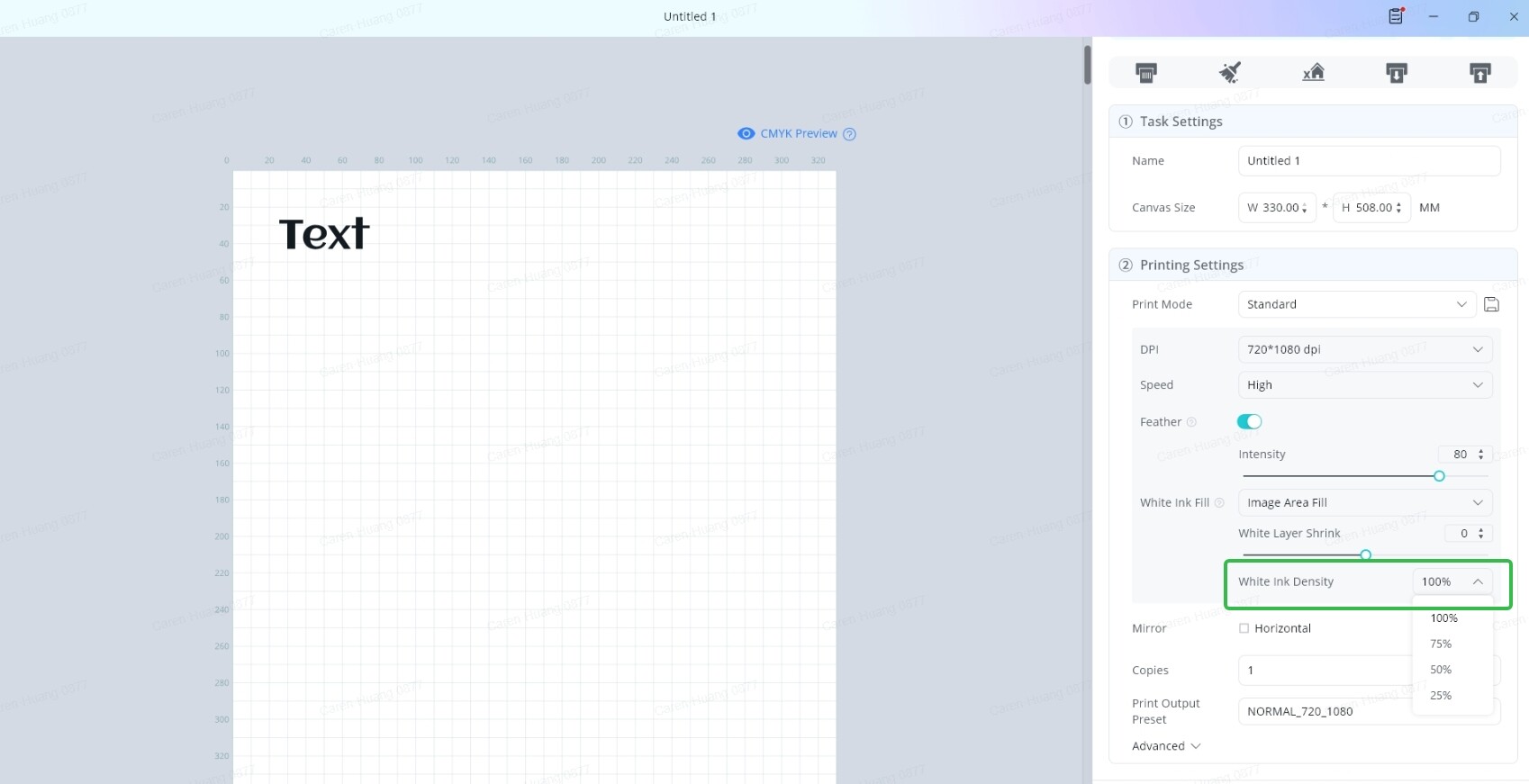
Yes.
This feature was added in IdeaStudio 3.2.1 and is now available to use.
You can adjust white ink density directly in the software based on your printing needs.
Can IdeaStudio save print presets?
Also yes.
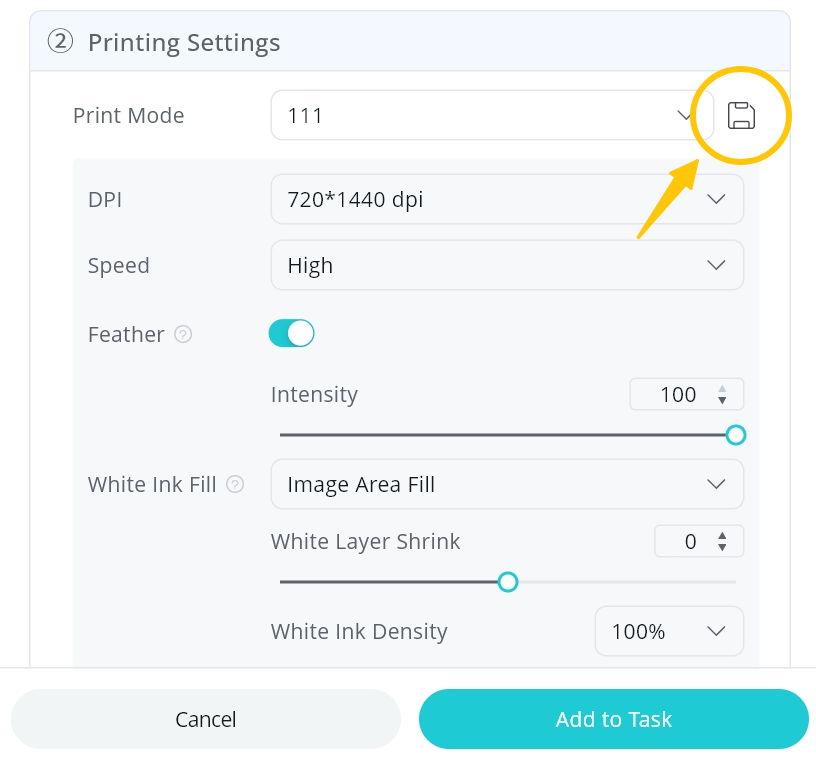
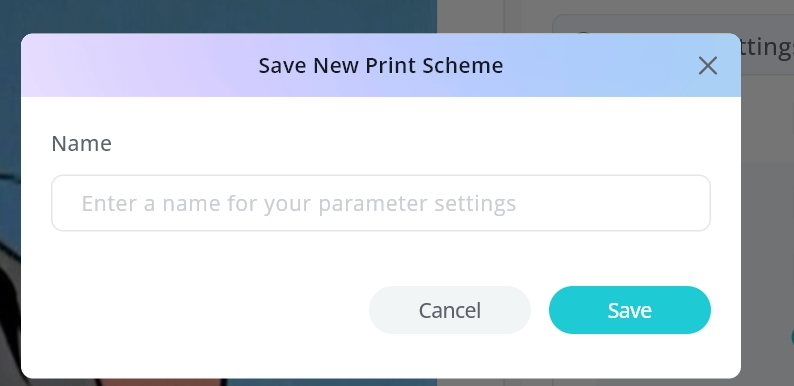
Preset saving was added in IdeaStudio 3.2.1, making it easier to reuse frequently used print settings without entering them again each time.
See the example below:
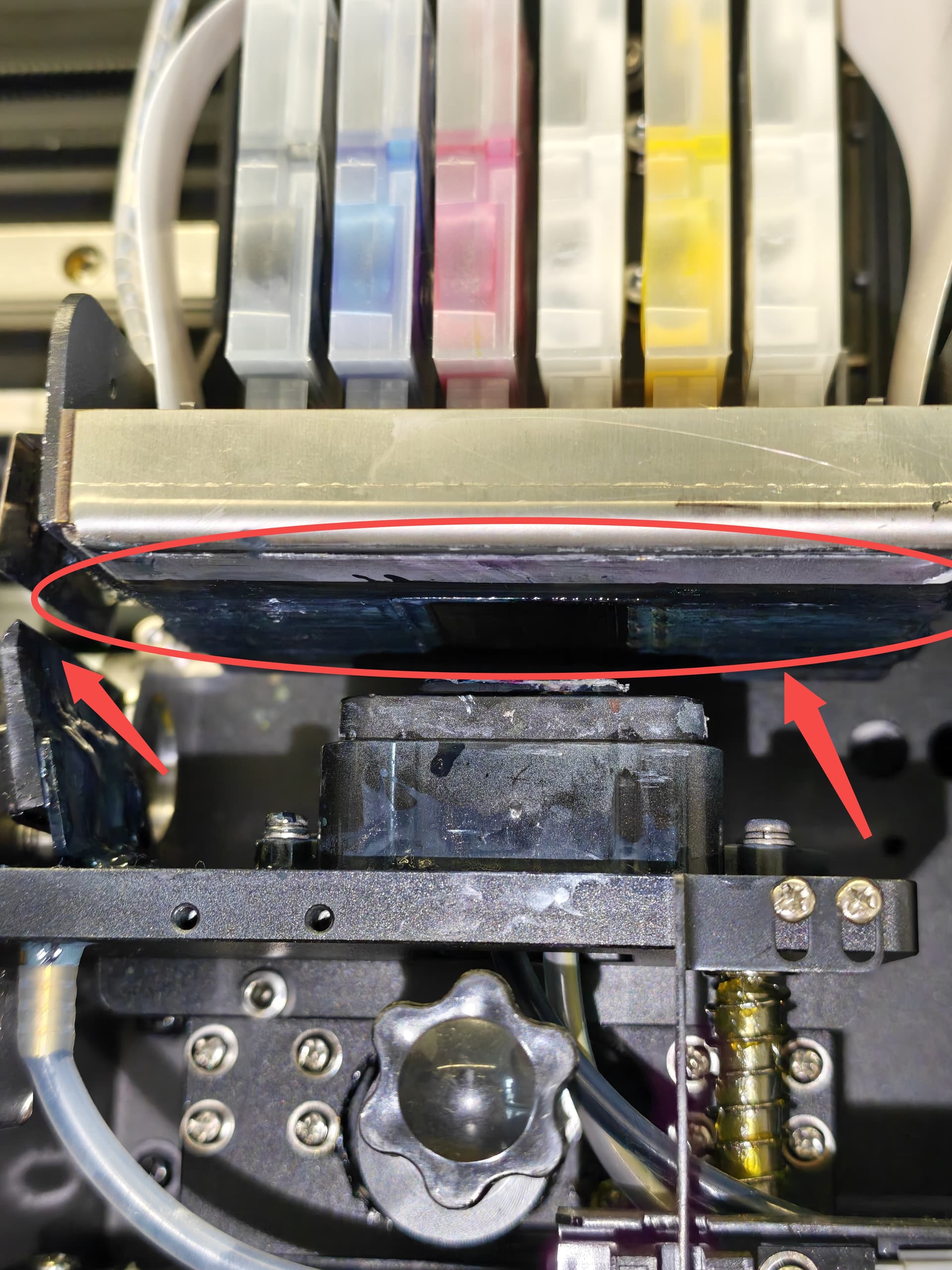
I’m still seeing random black ink marks on my prints, even after multiple head cleanings. Why?
If head cleaning doesn’t seem to help, it’s worth checking whether there is any dried ink, lint, or debris on the bottom of the printhead or the wiper blade.
A quick cleaning with the recommended cleaning solution can often help.
Missed Part 1?
The first FAQ covered a few other common topics, including printhead Movement, ink drying & white outline tips
If you haven’t seen it yet, Part 1 is worth a quick read as well.

