I set up and ran my tests, and all the colors print…BUT when I print the colors are wrong. I ran a color purge for each color and this is what I have
Yellow prints Black, Cyan prints Yellow. Magenta and Black print fine. All the colors are in the appropriate tanks. What’ can I do?
2 Likes
Just wanted to check first — was this happening right from the first time you used the printer, or was it printing fine before and then suddenly started doing this?
It might be easier to figure out what’s going on if you can take a few photos first. You could take a picture of the nozzle check, the sticker on the machine, and the ink cartridges, then send everything over to support@htvront.com along with a quick video if possible.
1 Like
Hi @i3obby424! Welcome to the community! We’re happy you’re here.
This video is for the D1, but it’s listed under the D2 playlist. I’m not sure which printer you have, but this video may help you.
If you’re using the D2, you may try these steps:
 1. Open the DTF Printer Settings inside IdeaStudio
Go to:
IdeaStudio → DTF Printer → Advanced Settings / Color Settings
(Depending on the version, it may be under “More Settings” or “Color Calibration.”)
2. Check your Channel Mapping
Make sure the channels are assigned like this:
- C → Cyan
- M → Magenta
- Y → Yellow
- K → Black
- W → White
If any of these are swapped, your colors will print wrong.
3. Re‑select the D2 printer profile
Inside IdeaStudio:
Printer → Select Model → HTVRONT D2
Re‑apply the default profile so the correct mapping loads.
4. Restart BOTH IdeaStudio and the printer
The D2 won’t apply mapping changes until both are restarted.
5. Run a small CMYK test print
If the colors look normal, you’re fixed.
If not, the mapping is still incorrect and needs adjusting again.
 Why this happens
This usually happens after:
- A software update
- A reinstall
- A corrupted profile
- Someone accidentally changing the mapping
It’s not a clog and not ink contamination — the ink is flowing fine, it’s just being routed to the wrong channel.
1 Like
Thank you, I will give this a try!
1 Like
This is my first time using the D2 printer. I have never printed before.
1 Like
You’re very welcome. Let us know how it goes.
I don’t have an advanced settings option. I checked my ink sacs and they all seem to be working,. I am using Control program drive v03 with the D2 printer.
1 Like
Since you’re using Control Program Drive v03, you won’t see ‘Advanced Settings.’
Look for:
- Color Manager
- Ink Settings
- Channel Settings
- More Settings
- or a gear icon in the DTF print window.
That’s where the CMYK channel mapping is in v03.
Your Yellow and Cyan channels seem to be swapped, so once you correct the mapping, your colors should print normally.
Under device settings I have
Basic Info
General
Maintenance
Machine Calibration
None of them have a feature to map the colors.
1 Like
The color‑mapping panel isn’t in Device Settings.
You have to open an actual DTF print job in the Control Program v03 window — that’s where the Color/Channel/Ink settings appear.
Look for something labeled Color Settings, Color Manager, Channel Settings, Ink Settings, More Settings, or a gear/three‑dot menu inside the print window.
I don’t know how to do that.
1 Like
The D2 is designed to work with the IdeaStudio app or the Better Printer app, depending on your model and firmware. Those are the current supported apps. If you’re using something called ‘Control Program v03,’ that’s not the recommended software for the D2. Download and use one of the supported apps so you can access the correct print settings.
Once you’ve done this, let me know, and I’ll try to walk you through it.
I am using IdeaStudio. Can you send me a screen grab of where this setting should be?
I deleted and reinstalled both the D2 Printer and the IdeaStudio program to attempt a fix, but that didn’t help.
My color check on the D2 prints all the colors with perfect lines.
I am using LOKLiK IdeaStudio V3.2.1
1 Like
In IdeaStudio, load and select an image, hit Make, and look inside the print window for Advanced Settings, then look for something like Color Settings, Color Manager, Channel Settings, Ink Settings, or a gear icon. That’s where the color‑mapping options should be.
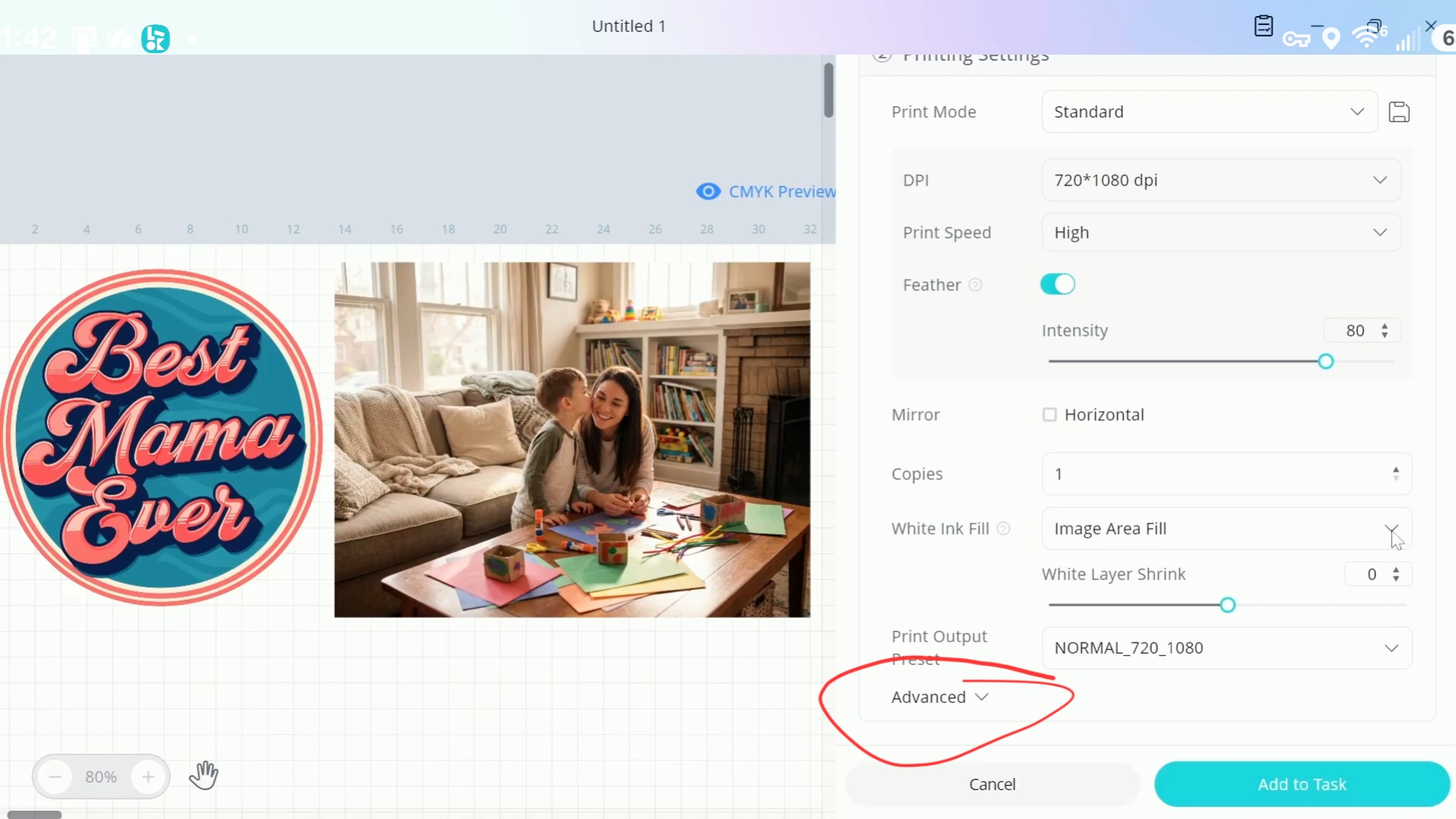
You can also check out this full playlist for the D2 DTF Printer here:
Thank you. I’ve tired all of that. I’ll work on looking at the videos again to see if i can find one about color mapping. My advanced there only give me an X Margin (mm) and Color Bar, nothing to check the actual mapping.
1 Like
You’re welcome. You may want to try the Better Printer app, since that’s the app the video shows in the color mixing one. I commented and asked on the video how to do this in IdeaStudio, but it may be awhile before I get a response. The video says D1 Printer, but it’s listed under the D2 playlist. So idk if it’s for both printers or strictly the D1.
Maybe, @OliviaZzz can answer the question.
1 Like