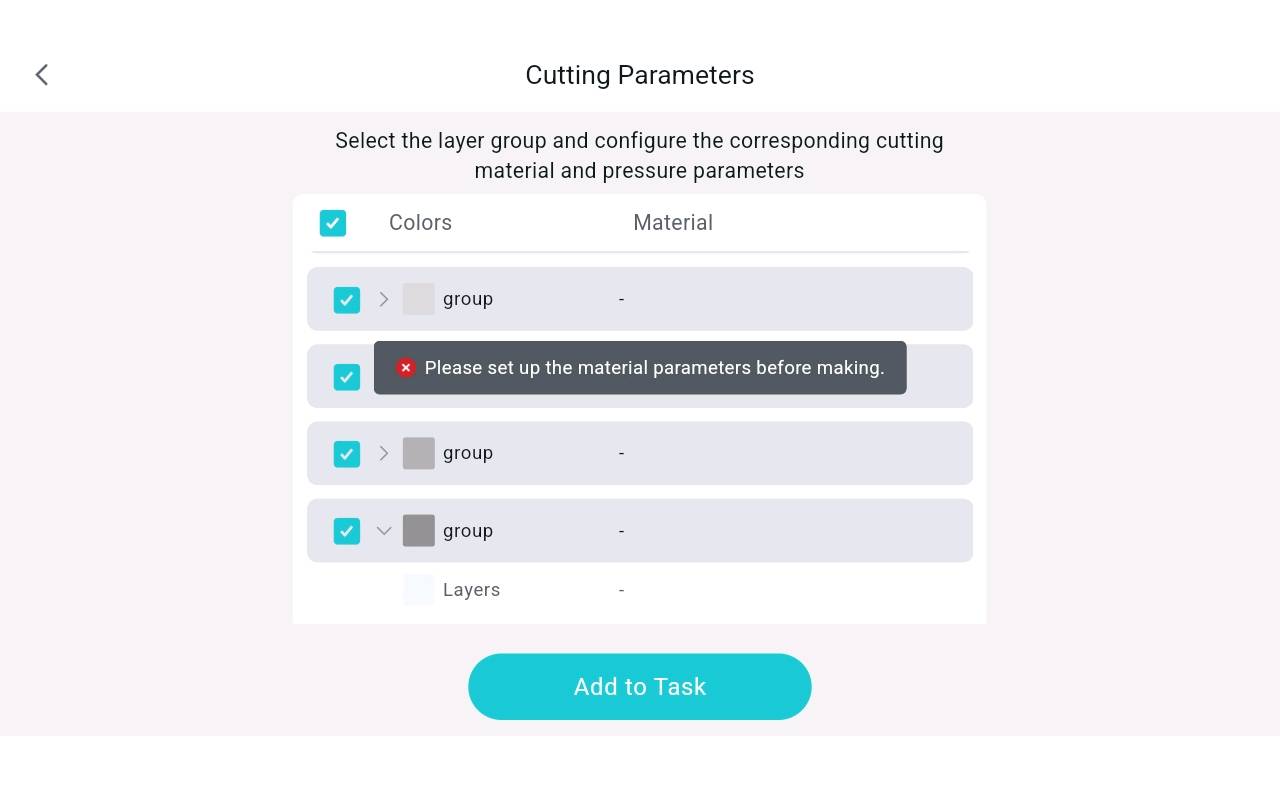
I am not sure what I am doing wrong , all I want to do is make amazing dyi craft like everyone else!? I am new here and not sure why I keep getting this pop up, no matter what I hit or the color it gives me the same pop up:rage: I am so confused and annoyed  !!! really wish there were beert explain!! I have used a circuit before and it was easy no crazy pop ups like this!! but I really this product, and want to use it but I can’t please help !!
3 Likes
Hi, @BrandyHodge ! 
 Welcome to the community!
  I know it’s frustrating learning a new software, don’t worry, we’re here to help.
The reason you are receiving this error message is because you need to select the brand and type of material each layer is, and add the settings you wish to use. I suggest checking each layer separately, set the parameters (material settings), then add them to task. If all of your layers are the same material and color, you can click and drag your mouse over all the layers and group them, before clicking MAKE. This will create one layer to be cut at one time. If you have multiple colors and/or materials for your design, you group the same colors of the same materials together, then you can set the parameters for that color and material.
For example, if you’re cutting out cardstock in blue, select just that layer and set the materials to HTVRont/Loklik and choose 230 GSM cardstock, mark the default settings, as those brands have their materials’ settings automatically adjusted, so you don’t have to enter anything. If you’re using another brand’s materials, I suggest making test cuts to see what settings you will need. Use just a small square in the corner of your material.
Then, if you want to add blue HTV to the cardstock, select just the blue HTV layer, choose the brand, set the parameters (force, speed, passes), then add to task. Do this for each different color and different material.
Then, from the task list, I start with the top task, place that material on your mat, load the machine, then click the start  button. When done cutting, unload the mat, and place the next material on the task list on your mat, then, click start. Continue with this until all tasks have been ran.
If you’re using “other” brand vinyl, I suggest always doing a test cut, starting with a force of 300, speed of 3-4, 1 pass. If the test cut is difficult to weed, up the force little by little until you have your perfect settings. Another tip, be sure to keep a binder with your material settings, that way, you’ll always know what your perfect settings are.
Hope this helps. Let me know if you have any more questions. I’m always here to help. Good luck with your project. Can’t wait to see what all you make with your new machine. Have a fantastic day!
2 Likes
idk what I am doing wrong  even when I checked the box it will not let me hit metales it does NOTHING AND I AM SO CONFUSED!!! I also am not using a computer or laptop, I use my phone or a tablet!!! Can you show me in a video what to do? I have only be able to do my daughter’s name and mine and my hubby’s name for our truck window, nothing more
4 Likes
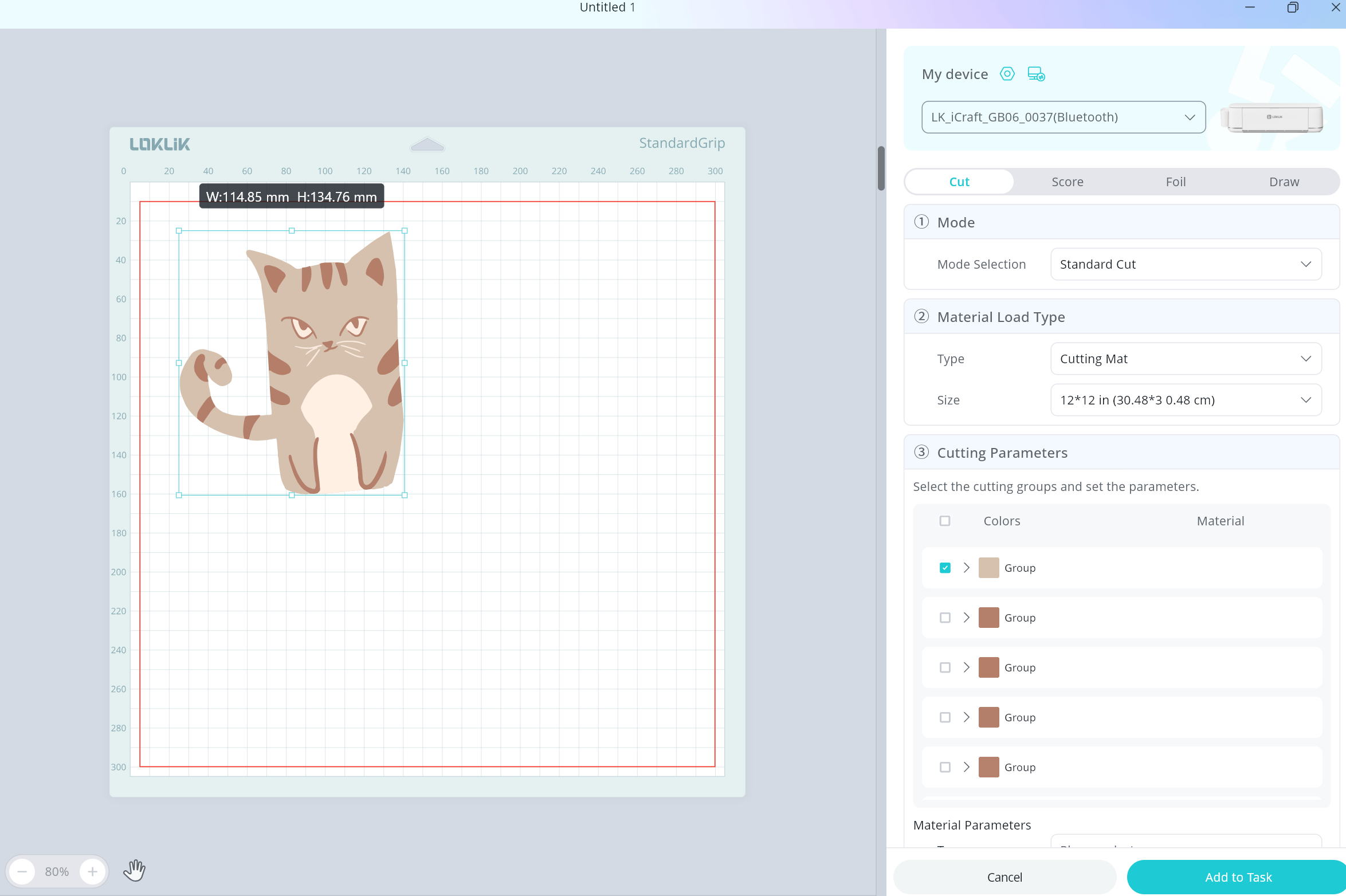
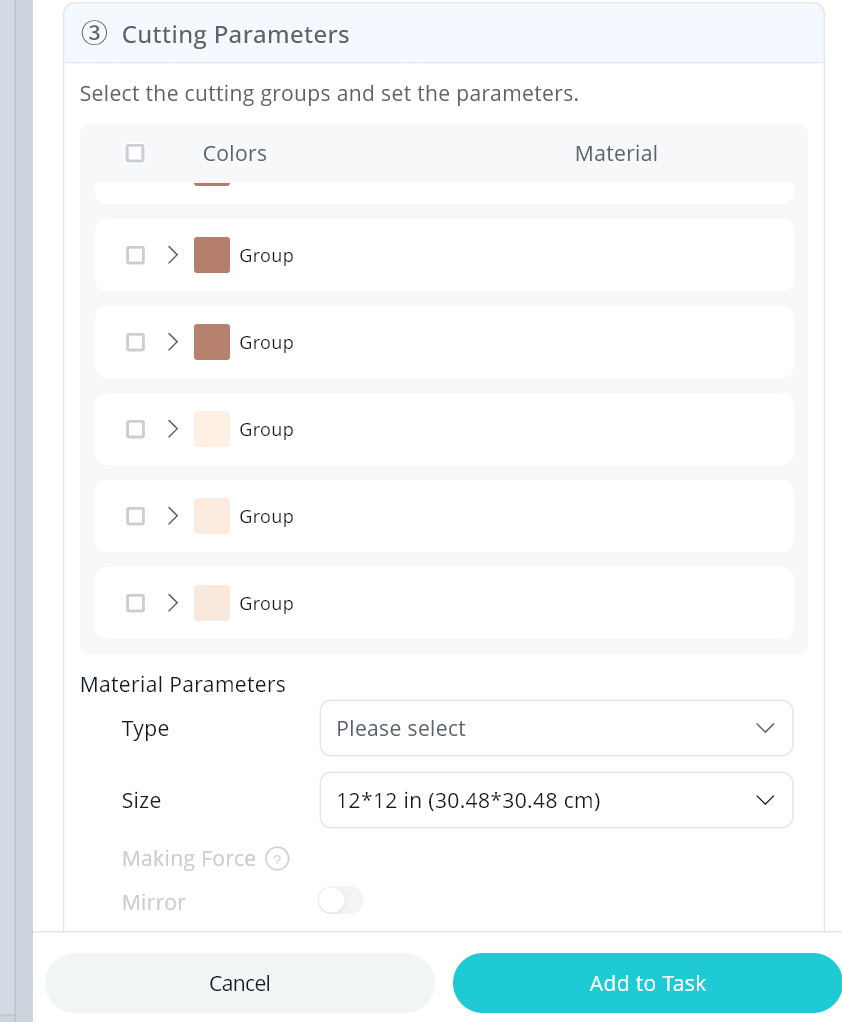
Hi @BrandyHodge. Sorry you are having problems, but you are in the right place. This is an easy fix. You just have to scroll down to see the Material Parameters section. The material parameters section tells the cutter pressure, speed and passes. You can choose precut material settings like cardstock, HTV and Vinyl. Or you can make your own. I recommend doing a test cut of a triangle or circle first, if you haven’t cut that material before, so you can see if your cut settings are right. This reduces wasted material. I do have a beginner guide coming out very shortly, to help learn the basics of Idea Studio. Idea Studio has gotten huge updates recently so other guides will be out of date unfortunately.
Desktop version
Just scroll down and you will find material parameters.
This is on mobile
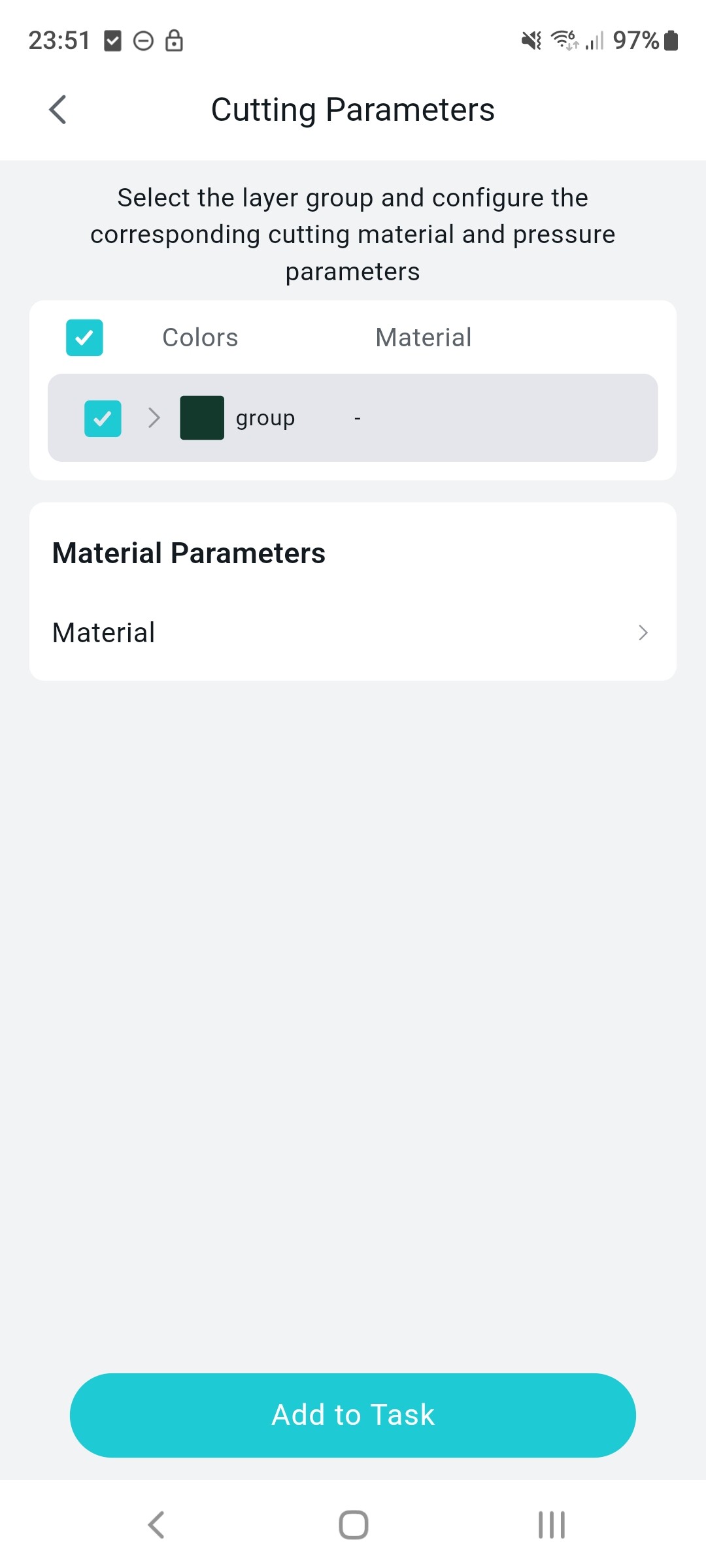
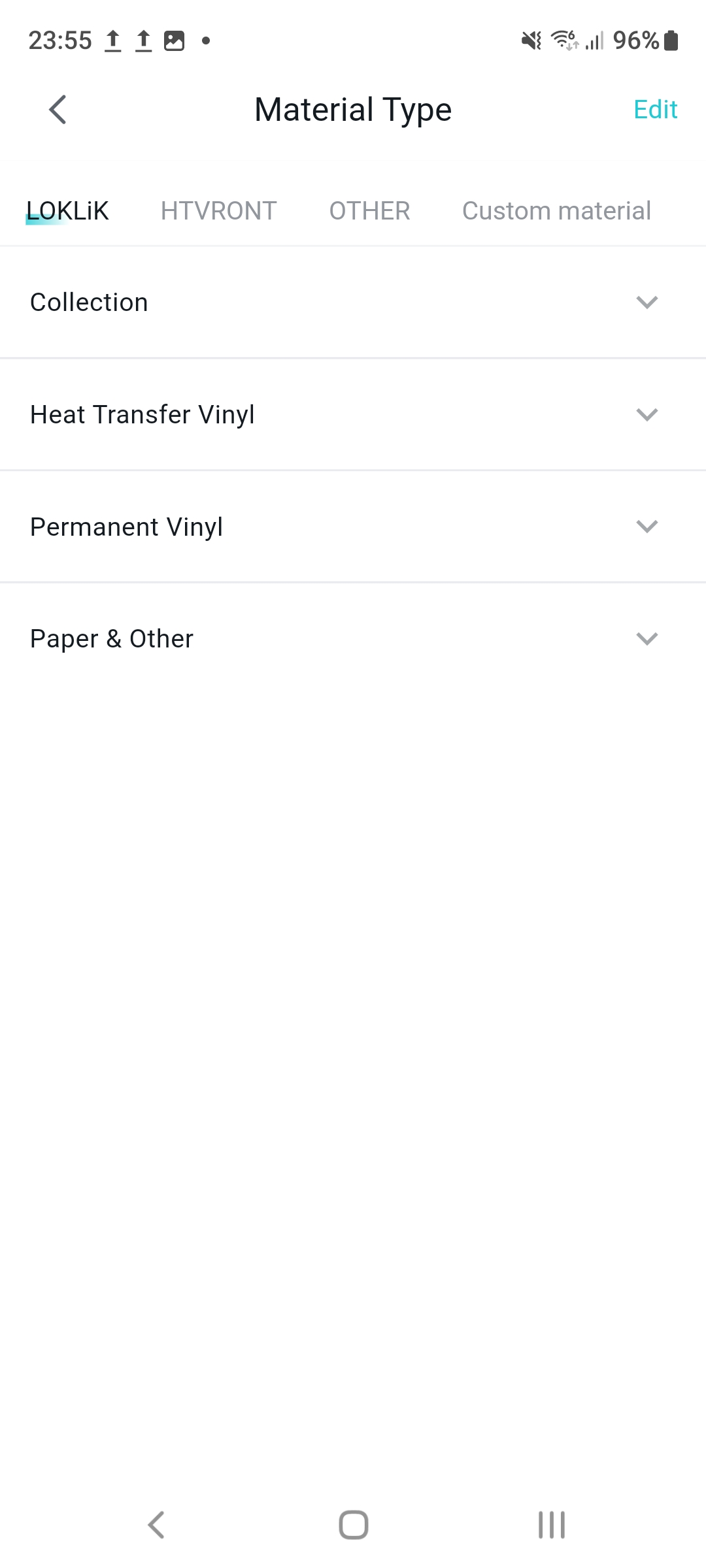
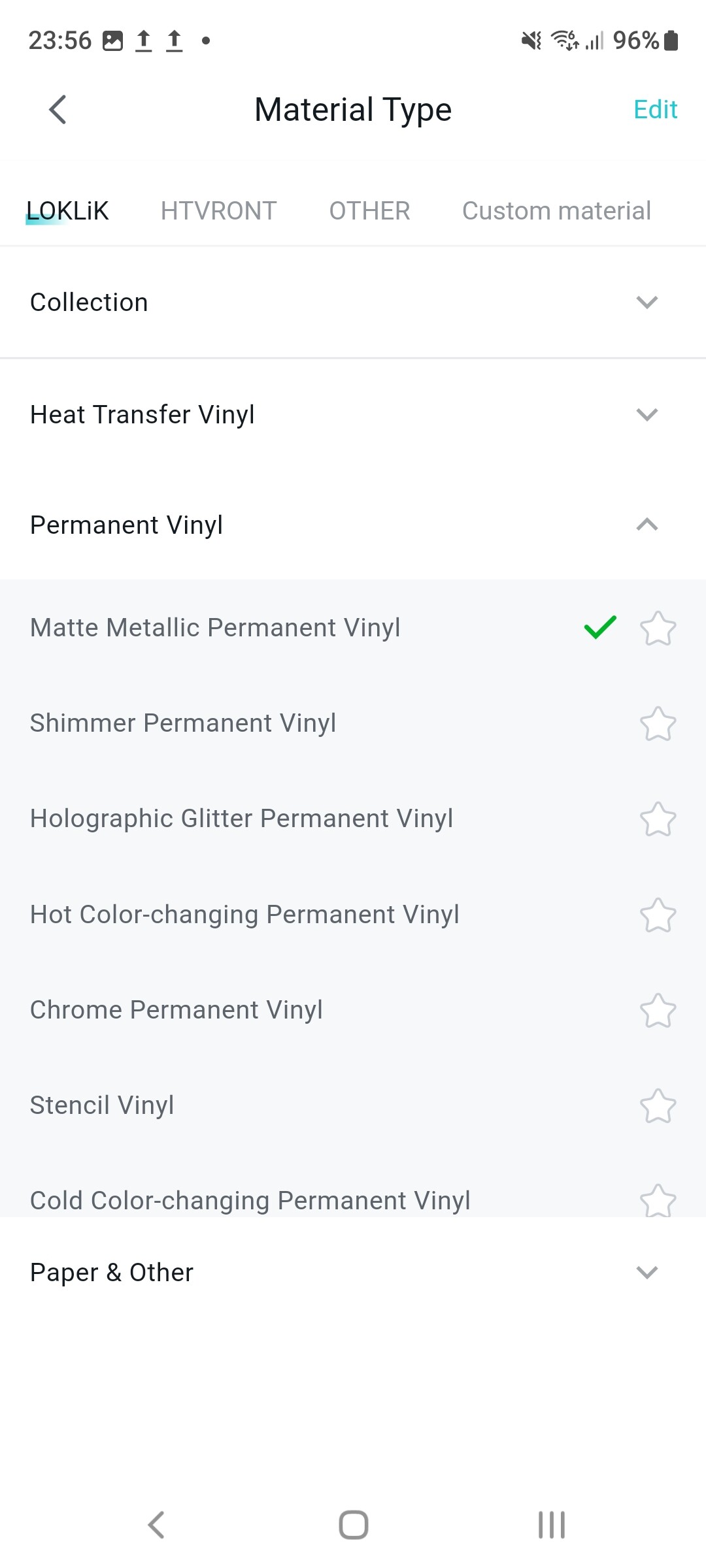
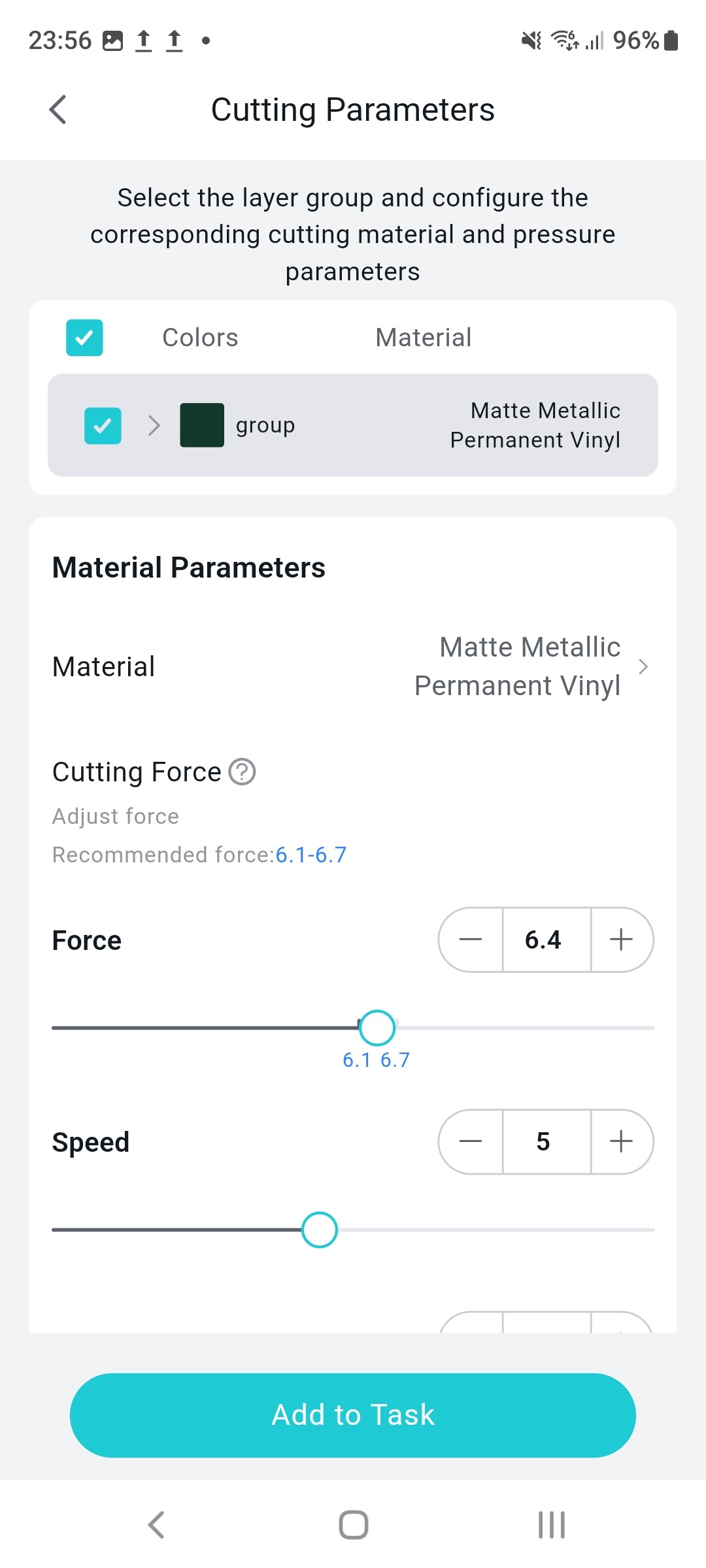
If you can’t scroll, try flipping your tablet to vertical position, it might show more of the options then. Let me know how you go.
3 Likes
Yes, I agree with @BellethehowtoGuru. You have several materials on your list, so you probably just need to scroll down/swipe up to see the material options.
3 Likes
same problem
1 Like
Are you using desktop or the mobile app version?