Hello everyone. I’m hoping someone can assist me. I’m starting to feel like I wasted my money on the iEngraver. I was able to setup the iEngraver in the app once and since then it has not appeared in my wi-fi options again. Is there something special you have to do to make the iEngraver show up in your wi-fi options? It sometimes show up but other times (like now and this whole week) it doesn’t come up at all. The antenna is properly installed. Yes, I have lightburn but I would prefer to use the LokLik app due to the fact that their suggested speed/power seem work best in the LokLik app. Thanks in advance for any help provided.
Hello @Illuzionary ! I’m not a lucky iEngraver owner, but this things may seem confussing to init.
Please, don’t panic, take a breath and try to keep your purchasing experience positive. I’m sure our iEngrave crafter mates will come very soon to help and guide you and if nothing works, Loklik’s support will do, or resend or refund.m xd
In the mean time, you can think adding any pic or info that may help members figuring out
2 Likes
Hello @Illuzionary! I know this is a concern about the iEngrave not showing up in your mobile app. A number of users already faced the same concern like yours. But don’t worry I am happy to help you and guide you step by step. Actually, I am in the middle of editing my YouTube content about my Review on the iEngrave machine and this is part I added. I will provide screenshots and detailed instructions soon. 
1 Like
Thanks so much.
1 Like
Before we begin the process of connecting your iEngrave machine and your Mobile App you need to:
- power on the iEngrave (the emergency stop button, and the key are engaged)
- SD card is inserted
- Used 2.4 GHz (Only)
NOTE: When the iEgrave isn’t used that much or sit for a week or so, the app will not be recognized when you get back to use it. So, we need to go back to set up from the beginning again.
This is what you see in your screen at first (not connected):

Then, you tried to click the iEngrave and this will show:

And no matter what you do, even if you see this below you are trying to click again,


Now, what you need to do next is click the + button on the top right as shown below:

Follow the on-screen prompt accordingly:
Step 1: Enter your internet info and password then hit the next button,

Step 2: Hit the Go connect button,
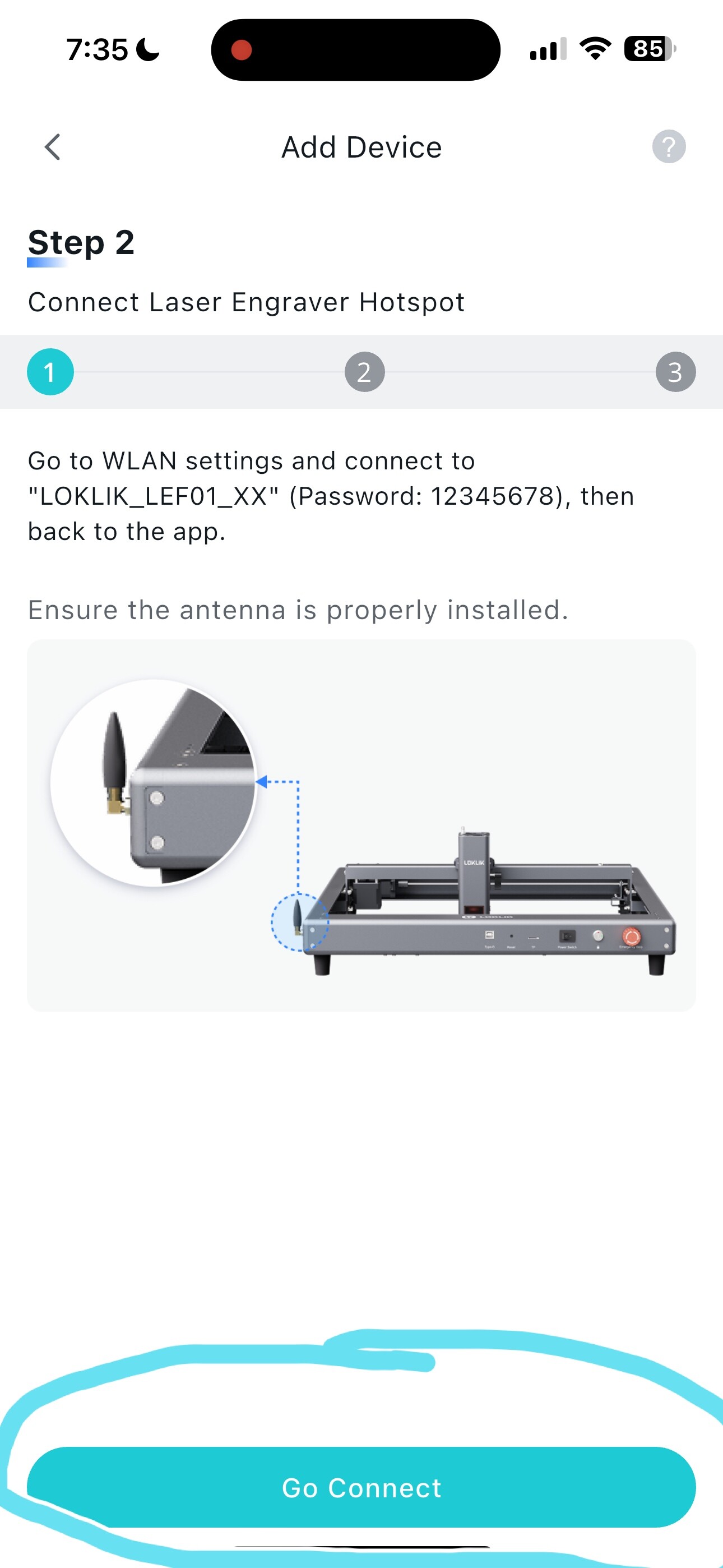
In your bluetooth settings make sure Bluetooth is ON - click “allow new connections”, then exit and GO to your wifi settings,

In your wifi settings, choose the LOKLIK - that would be your hotspot connection between your phone and iEngrave,


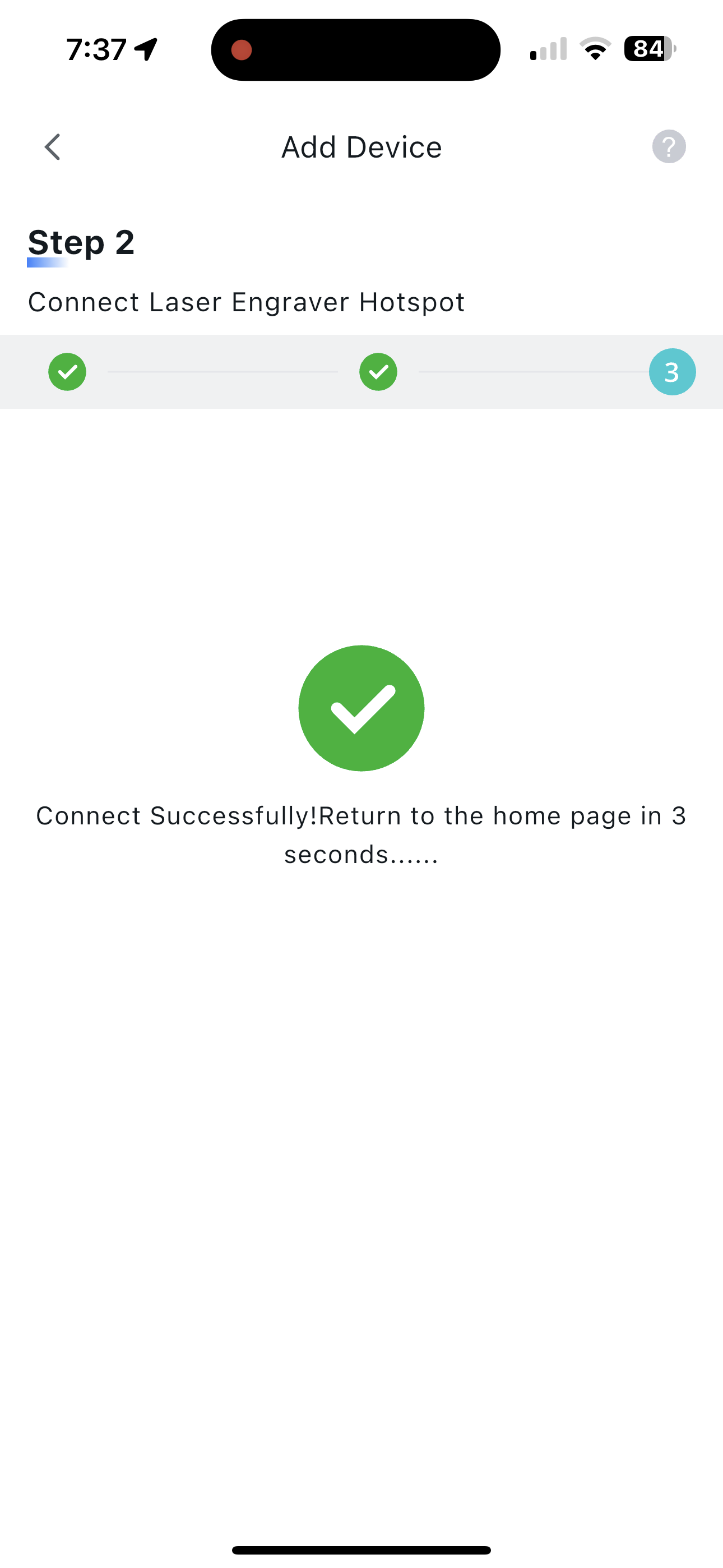
Then, back to the IS app and be patient this time and wait for the connection to be established. And Wala! You are back on track. Enjoy creating wonderful things with your iEngrave. Hope it helps!
2 Likes
Thanks soooo much for your help!!! It’s very good knowing that if the machine isn’t used often the connection will drop.
2 Likes
You are most welcome! Happy to help.  Can’t wait to see your projects soon!
2 Likes
Let’s connect this question with the wonderful tutorial @rinsky made 
1 Like