Before we begin the process of connecting your iEngrave machine and your Mobile App you need to:
- power on the iEngrave (the emergency stop button, and the key are engaged)
- SD card is inserted
- Used 2.4 GHz (Only)
NOTE: When the iEgrave isn’t used that much or sit for a week or so, the app will not be recognized when you get back to use it. So, we need to go back to set up from the beginning again.
This is what you see in your screen at first (not connected):

Then, you tried to click the iEngrave and this will show:

And no matter what you do, even if you see this below you are trying to click again,


Now, what you need to do next is click the + button on the top right as shown below:

Follow the on-screen prompt accordingly:
Step 1: Enter your internet info and password then hit the next button,

Step 2: Hit the Go connect button,
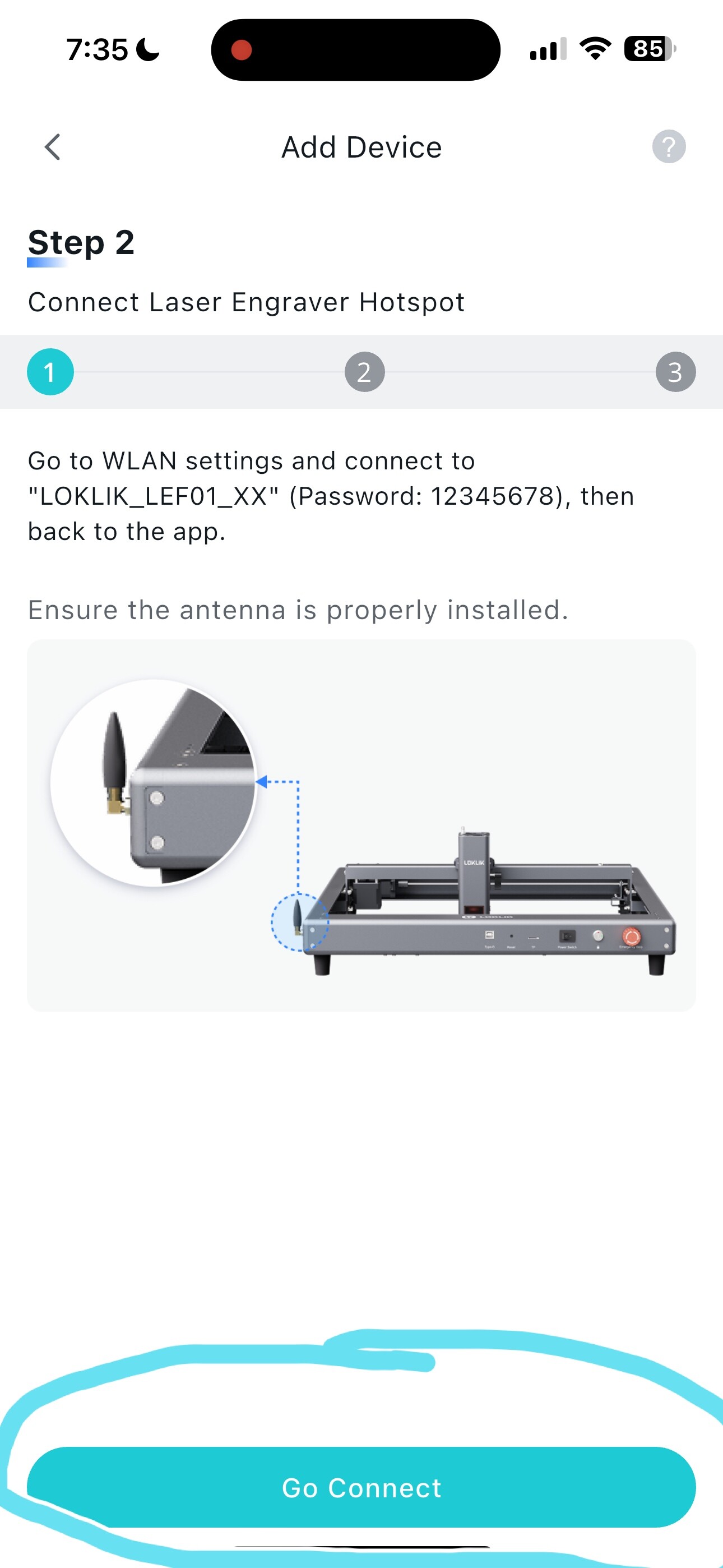
In your bluetooth settings make sure Bluetooth is ON - click “allow new connections”, then exit and GO to your wifi settings,

In your wifi settings, choose the LOKLIK - that would be your hotspot connection between your phone and iEngrave,


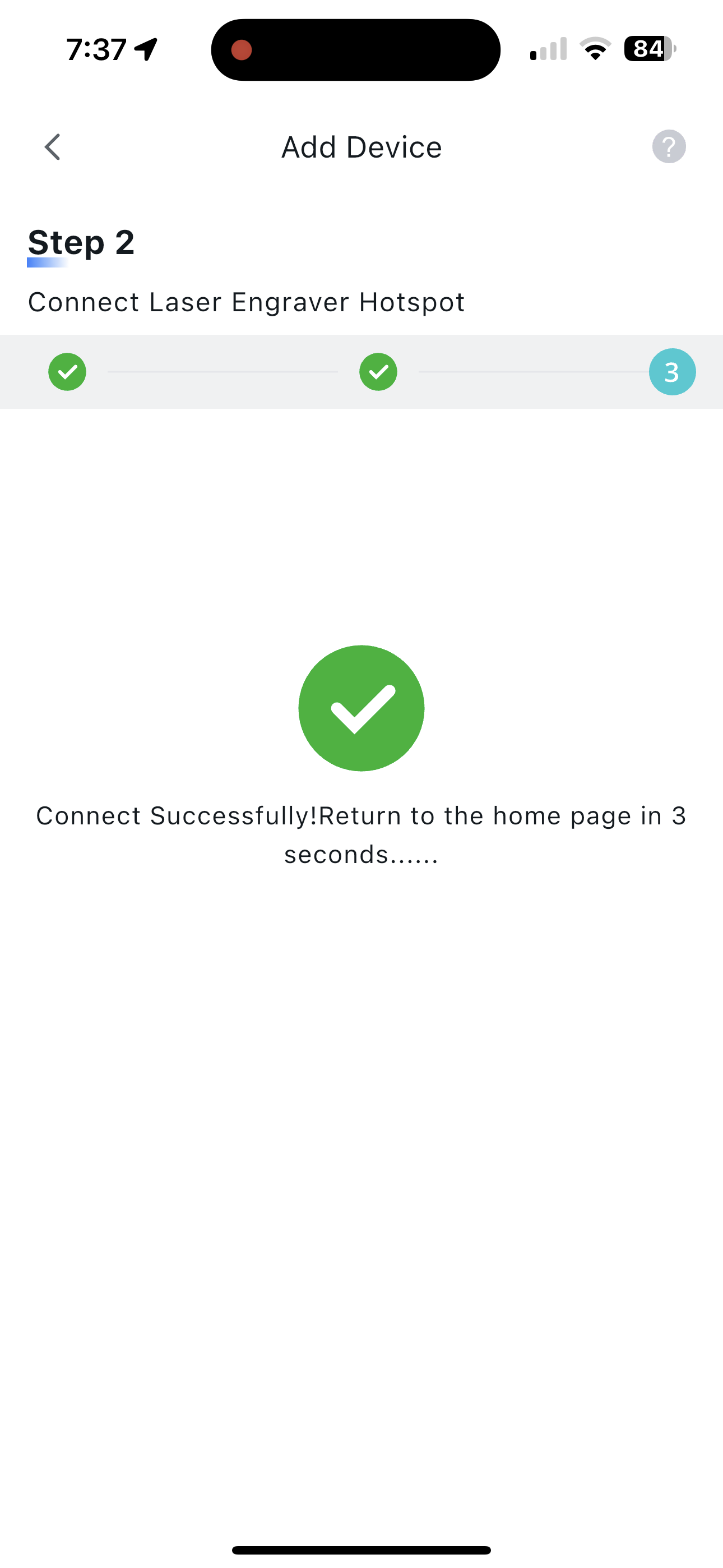
Then, back to the IS app and be patient this time and wait for the connection to be established. And Wala! You are back on track. Enjoy creating wonderful things with your iEngrave. Hope it helps!