Hi, my iEngrave will not connect to Loklit app on my phone or iPad. It got to around 75% then stopped and when I try to add the machine to the app nothing is showing up.
welcome to the community @Barbara_Jones1 I have tagged @rinsky here to help and direct you, she is the moderator for Machine section. hope you get connected soon! 
6 Likes
Thanks!
6 Likes
Hi and welcome to the community @Barbara_Jones1 ! I’m sorry that you had the same issues as we experienced with the connectivity between the machine and phone. The Wi-Fi setup requires 2.4GHz — not 5GHz — and may need a reset if misconfigured. (TIP: If you have a dual band network, make sure you choose 2.4GHz for both mobile phone and machine in order to work.) I had an issue connecting between my phone and the machine at first, but I realized my phone was connected to 5GHz. So, I went to change it and all good to go! It takes time to establish the connection after you exit or refresh the app and turn back the machine ON, just be patient and you will be connected.  Hope it helps! Please keep us updated!
6 Likes
Unfortunately it is still not finding my machine. I see there is a reset port, should I do that and start over?
7 Likes
Please try it and see what happens. Try refreshing the loklik app in your phone as well and choose the 2.4GHz WiFi and make sure the iEngrave is turned ON when you this.
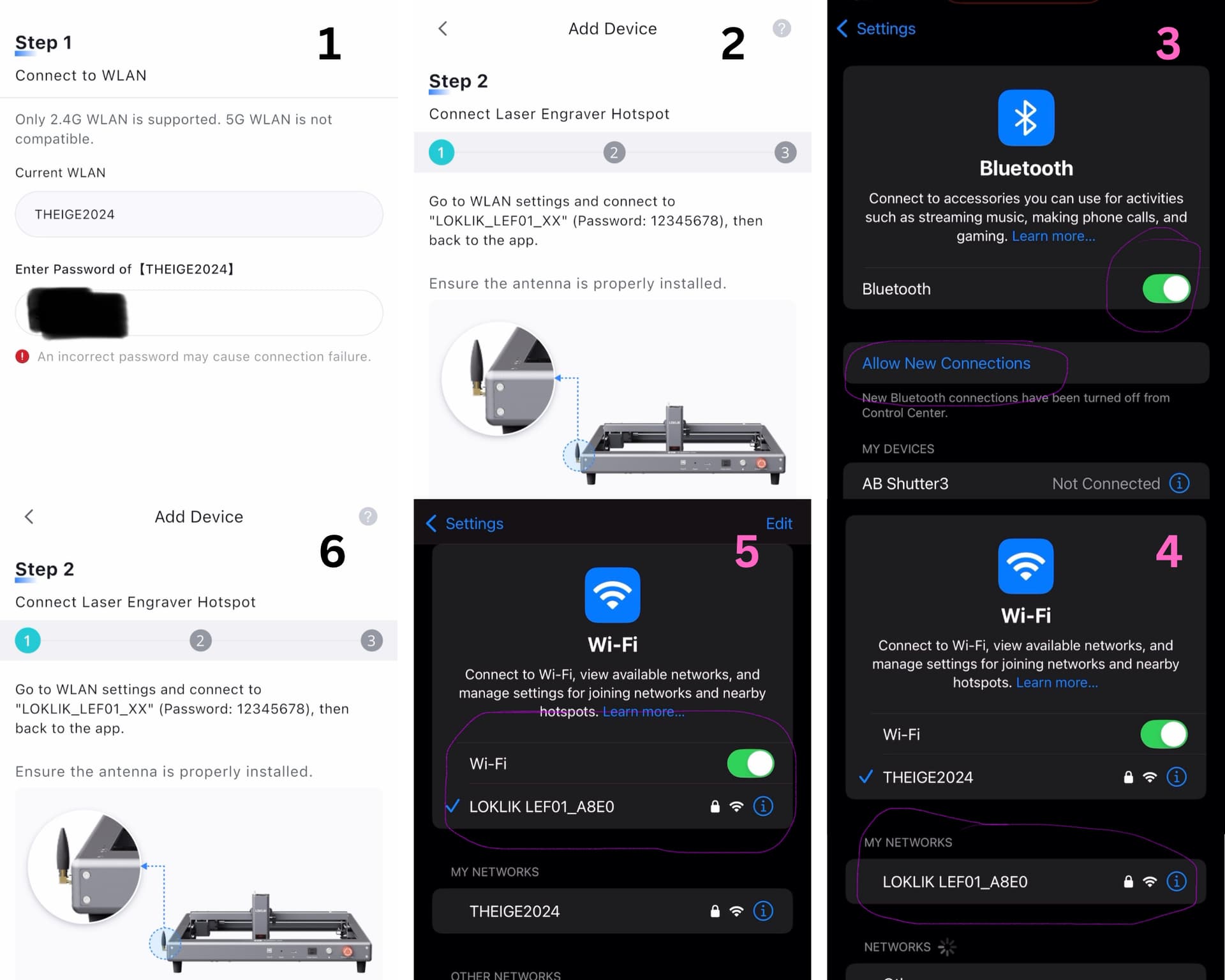
Once reset is done, go to mobile LOKLIK IS app, click add device button found at the right top corner and add your iEngrave.
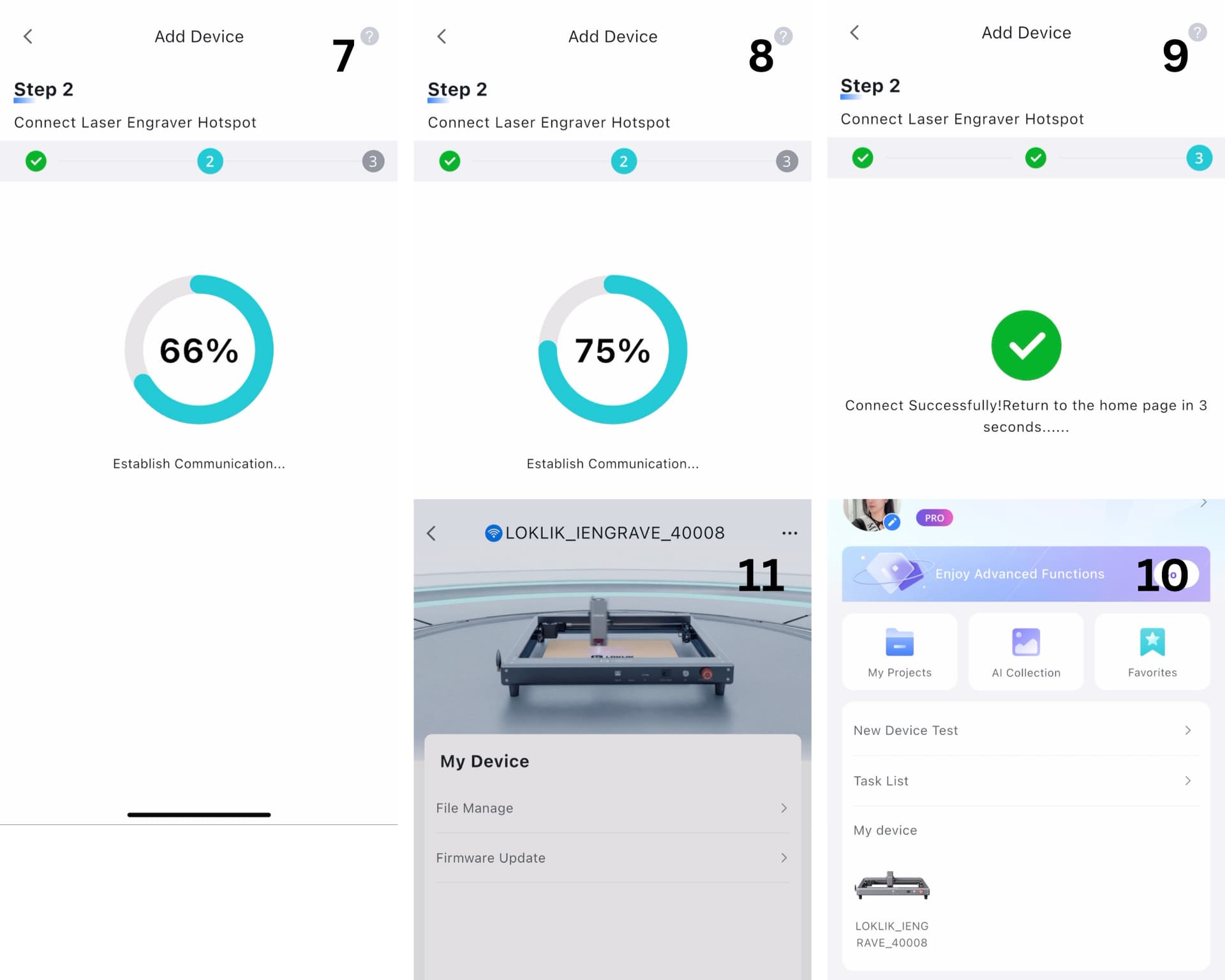
Follow the prompt on-screen accordingly, and when you are in the Bluetooth settings, clicked the “allow new connections” and the new iEngrave (LOKLIK LEF01_A8E0) will pop out in your screen and click that then go back to the app and wait for connection to establish. Your iEngrave is the new hotspot wifi connection between your phone and the machine this time.
6 Likes
I made a quick video for you, and I will break it down through screen shots. I reset mine so, we can do this step by step how to connect. I can’t post it here, the file was big. Do you have discord at LOKLiK or HTVRONT, I can send there.
4 Likes
You should see like this on-screen prompt in your connectivity setup between your mobile phone and iEngrave Machine.
6 Likes
Hope you’ll be able to use your machine already
4 Likes
Unfortunately no, I cant get the app to work and lightburn in installed but the laser wont move
3 Likes
I took a screenshot for you @Barbara_Jones1 to follow the steps above. Also, don’t forget to insert your SD card came with your iEngrave before you turn ON the machine.
2 Likes
2 Likes
Hi, I actually did that. Lightburn program shows my machine and says it’s ready. So I imported a simple design and went to frame it and nothing. I tried “move” and still nothing. I made sure everything was connected.
2 Likes
It’s a bummer! The least thing you can do is uninstall and re install the Lightburn software to your PC again. If the same issues persist after re installing it; you might need to contact support and exchange your iEngrave, possibly you have a bad mainboard. 
1 Like
Do you mind sending us a video or screenshots of your step by step process? I recommend for you to use the Loklik Ideastudio mobile app first before using the Lightburn software. In that case, we know that the iEngrave is working and the Lightburn software is not properly installed with the machine information in it. Thank you!
2 Likes
Yes, i will send it tomorrow. Thanks for all the help!
2 Likes
Hello, you might want to double-check if both the driver and device configuration are selected correctly, as shown in the image. If the connection is successful, you’ll see “OK” appear in the console.
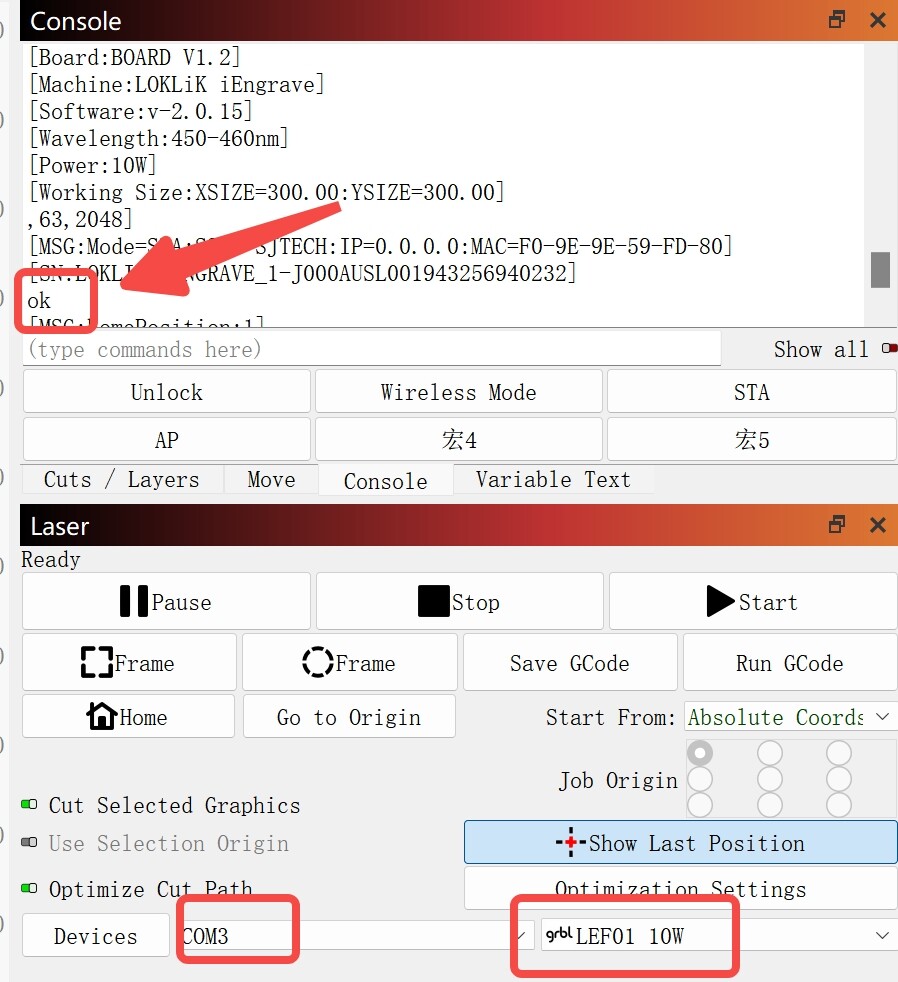
If “OK” doesn’t show up, it likely means the machine isn’t connected yet. If it does show but the machine still isn’t responding, it would be helpful to share a short video of your steps. Just make sure the console area is visible in the video.
Since video size is limited here in the community, you can also send it to support@htvront.com for more direct assistance. Hope it gets sorted out soon.
5 Likes
Hi @Barbara_Jones1! Just checking in—were you able to get your iEngrave connected to your mobile phone or desktop IS version? Please keep us posted. Thanks so much!