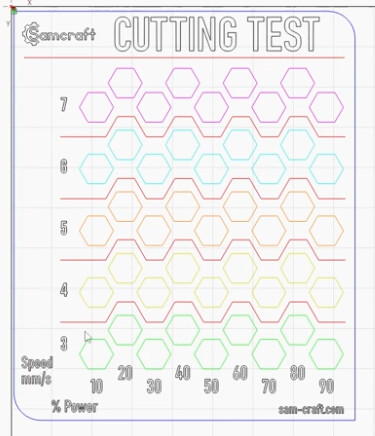
I was hoping for something like this:
So far I can’t figure out how to do multiple layers/passes of different speed and power using the LokLik IdeaStudio, and was hoping someone else has figured it out. This way, when I get new material I can run a sample test to see what settings I should use.
4 Likes
Hi @kurkCourtney. Welcome to the community! We’re happy to have you here.
I made you a beginner‑friendly cutting test sheet as an SVG so you can actually use it with the iEngrave. You can download it here: Microsoft OneDrive
Just import it into IdeaStudio. Each circle is its own cut shape. Since IdeaStudio doesn’t support different speed/power settings inside one job, you’ll run it row by row:
• Select one row
• Set the power to match the row
• Set the speed to match the column
• Run it
• Change settings and run the next row
This will give you clean, accurate cutting results for new materials.
If you want a version with different speeds or power levels later, I can tweak it.
2 Likes
Thanks… I appreciate the assist.
Boy that’s a lot of steps to get a test. I guess there’s no way to “program”/save it so I could run this same test (with the 25 different runs)… unless someone has a method for that.
2 Likes
You’re welcome. You’re right — it is a lot of steps, and I wish IdeaStudio supported multi‑setting jobs, but it doesn’t. The software only allows one speed/power/pass setting per job, so there’s no way to “program” or save all 25 runs as an automatic test.
You can save the SVG itself, but the settings won’t save with it. Every laser software is different, and IdeaStudio just doesn’t have that feature yet. So for now, the only way is to run it row by row when you’re testing new materials. You can always suggest that feature by going to the Help tab, clicking Errors and Feedback and tell them you’d like to see that in a future update. It’s not guaranteed that they can actually do it, but it won’t hurt to try.
A good way to keep things organized is to keep a little notebook, binder, or even a notes app where you write down the settings that worked for each material. Since IdeaStudio only saves your last-used settings and not full test sequences, most people keep their own log so they don’t have to redo the whole test every time.
2 Likes