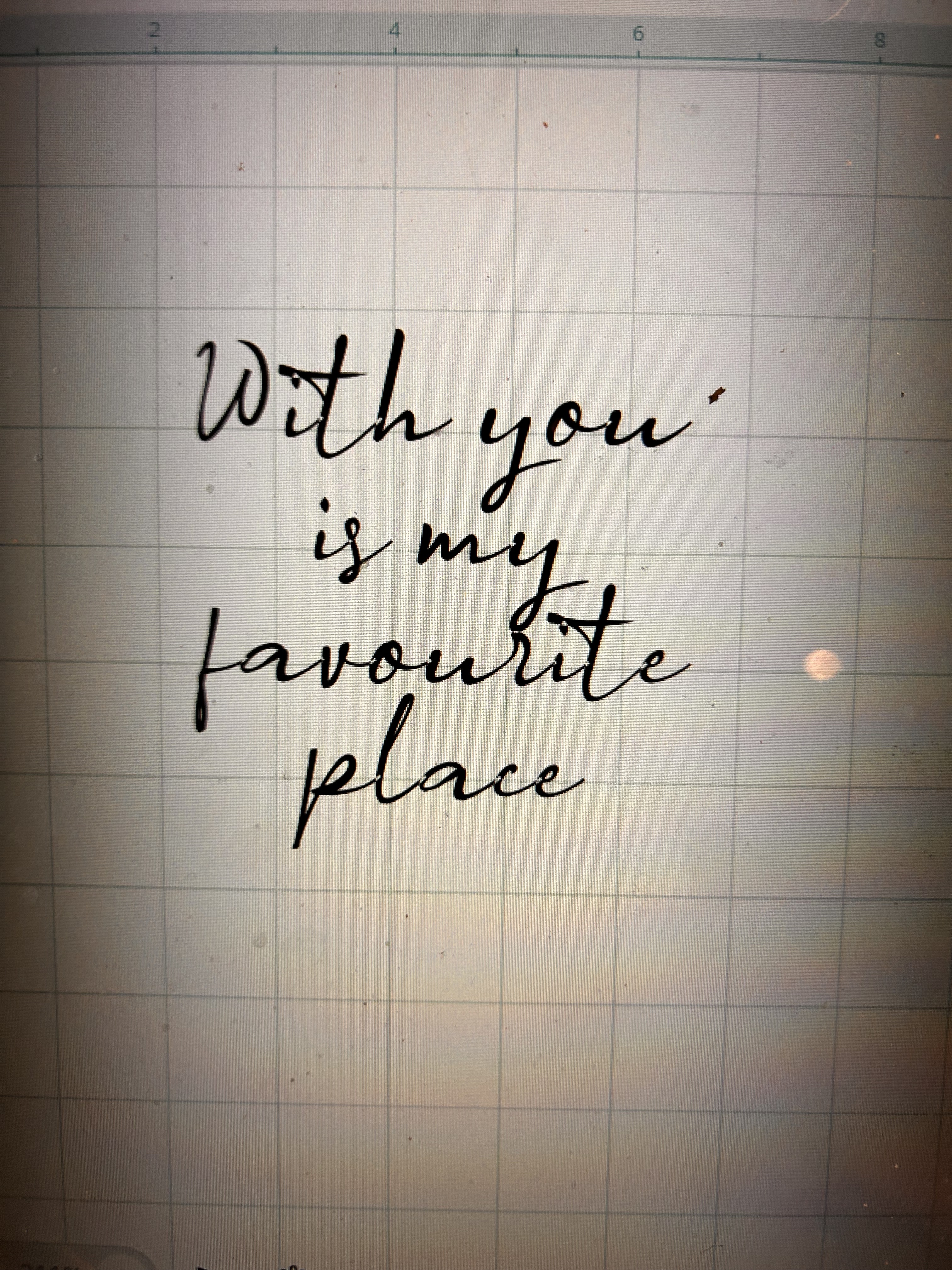
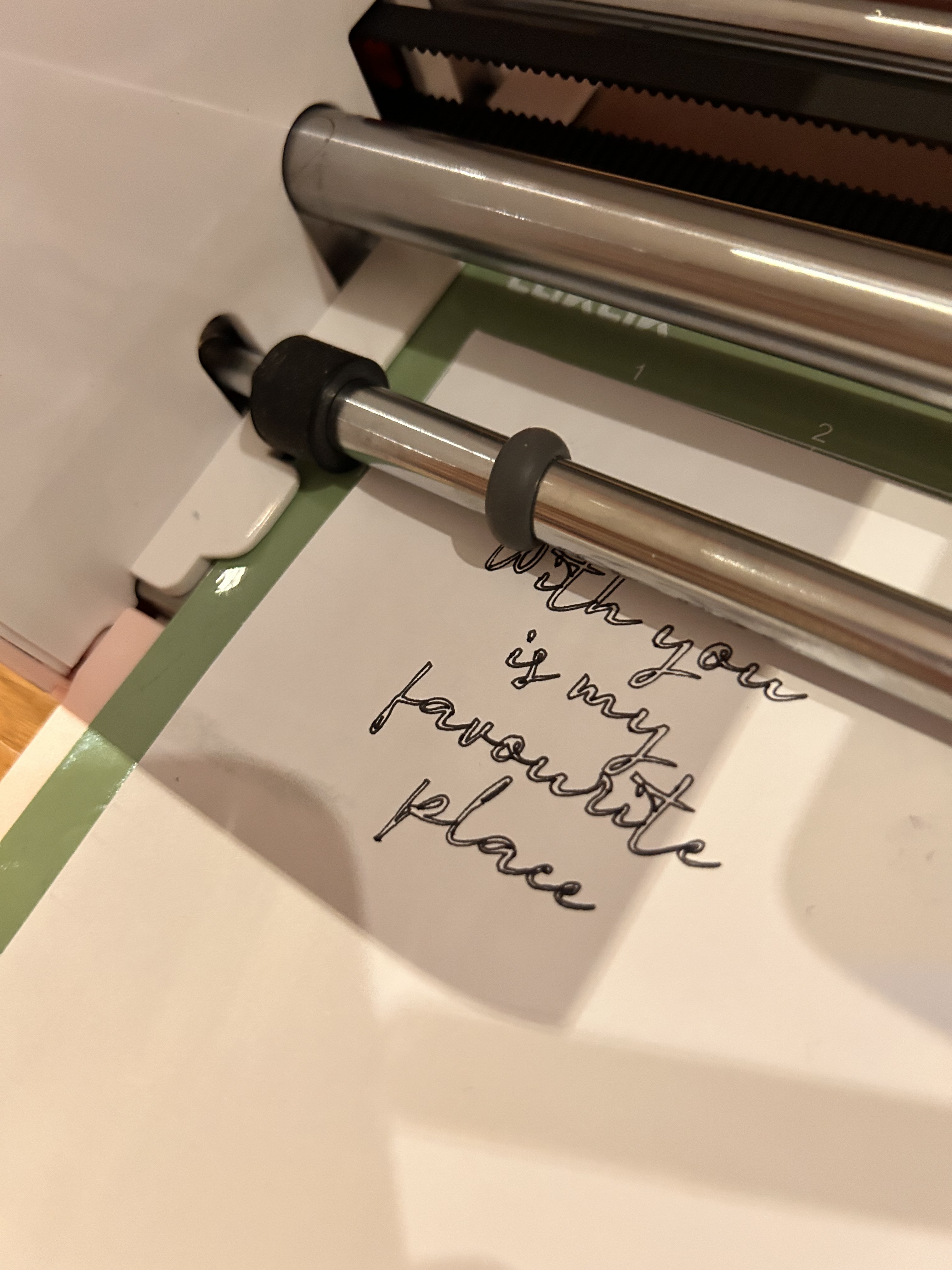
I’m trying to use the pen function & even though I choose fill on the letters the pen is not filling them!! Can anyone advise please?
5 Likes
Hi, @HayleyJohansen, 
 Welcome to the community! We’re happy you’re here. The pen only does the outline. You’re supposed to use the brush tip to fill it in. It’s like that with other brand cutting machines, too.
Also, to remove those slits/white marks from cutting into other letters, select the element/word(s) and click Combine > Subtract Crossover. This will close all open paths and make it one solid word. However, make sure you’re absolutely sure that’s the font you want before subtracting the crossover, as you won’t be able to change the font afterwards. 
4 Likes
Single‑line fonts are a special type of lettering designed so that plotters, engravers, and lasers can draw each character with a single continuous stroke rather than outlining the shape. Because they’re true single paths, there’s no need to fill in the centers of the letters. Most font files will indicate whether they’re single‑line or not. You might also see them referred to as stick fonts, single‑stroke fonts, sketch‑pen fonts, engraving fonts, or handwriting fonts.
2 Likes
I think @BellethehowtoGuru is suggesting using single line fonts if you don’t want to fill them in yourself. You can filter them by Single Line or Regular by clicking the All Fonts drop-down while in the font selection panel. Scroll all the way down, and you’ll find Single Line and Regular. Choose Single Line if you don’t want to fill in letters. However, if you’re like me, you want to use thicker/regular fonts, so, you’ll need to fill them in yourself. Personally, I find it very fun and therapeutic to fill in the letters with the brush pen. 
Also, the Fill is either for changing colors of your elements, or in the View panel, you can toggle from Fill to Contour. In Fill mode, it shows you the full design, in Contour mode, it shows you how the design will be cut/drawn. Basically, it’s the cut/draw lines, it will show you exactly where it will cut and write. It doesn’t mean it will fill in the color if you choose Fill. No matter what, it will always draw or cut the contour view. Contour view is also good for checking if the slits are showing up in your letters. Even if you click Make while in Fill mode, it will still cut/draw how it looks in Contour mode. I hope that makes sense. 