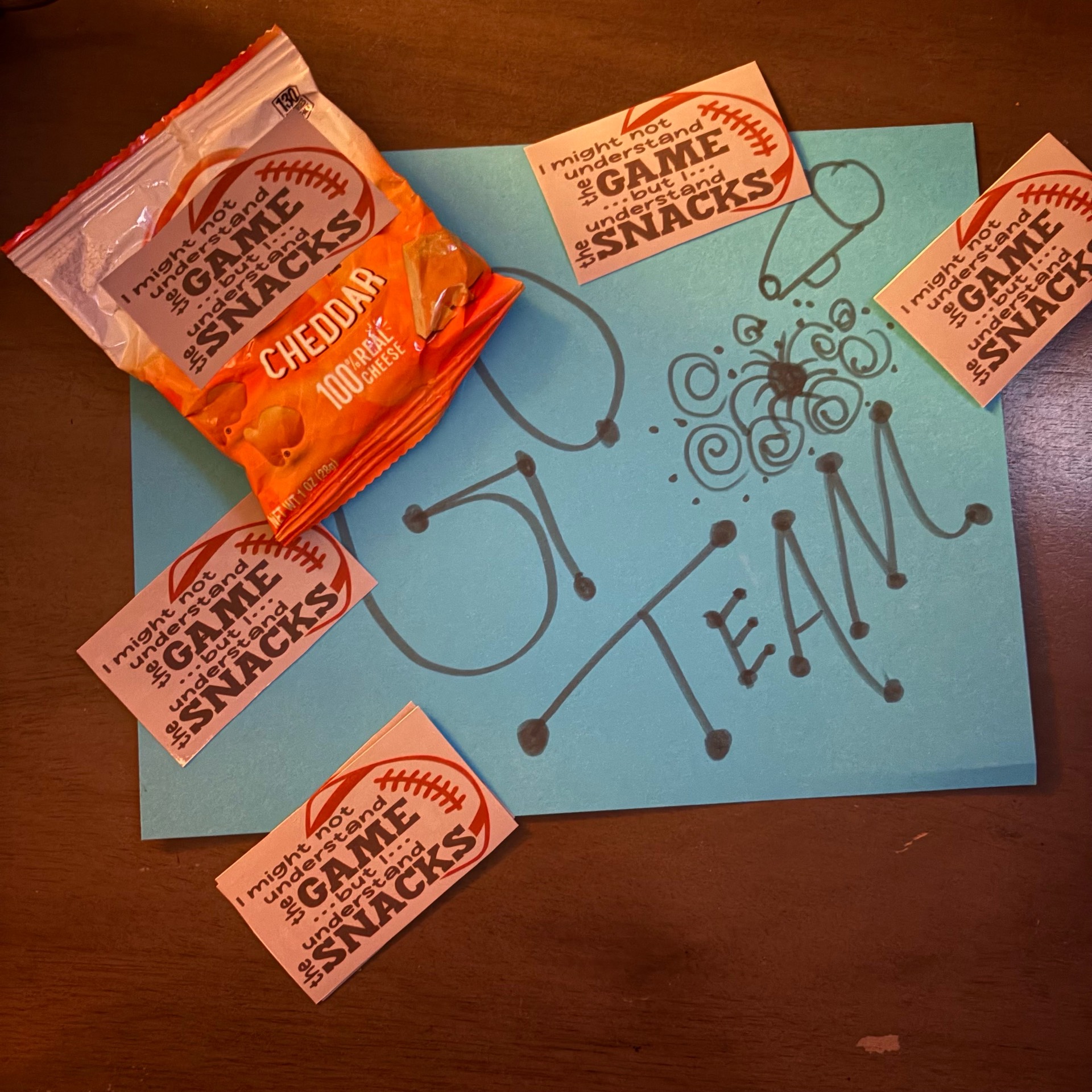
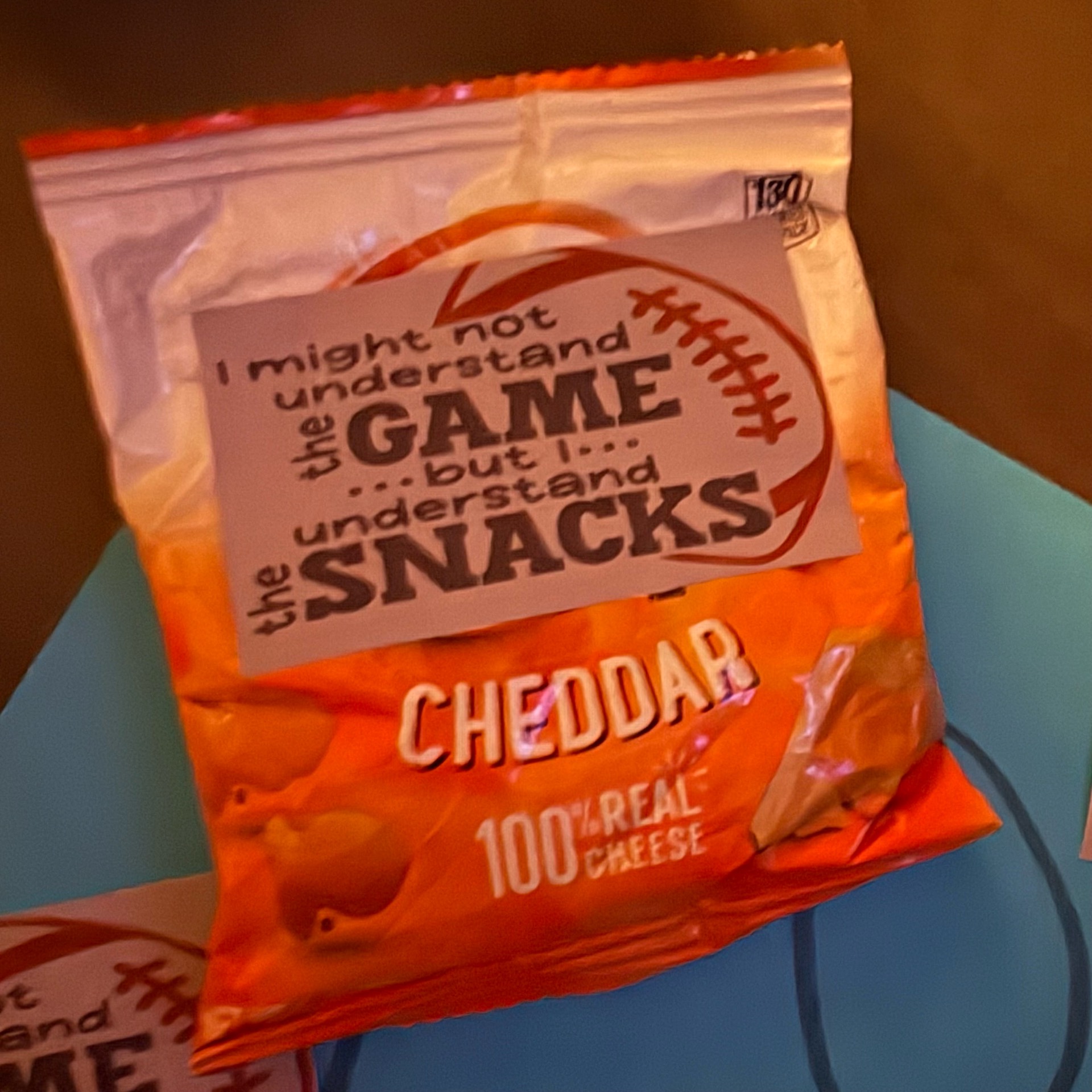
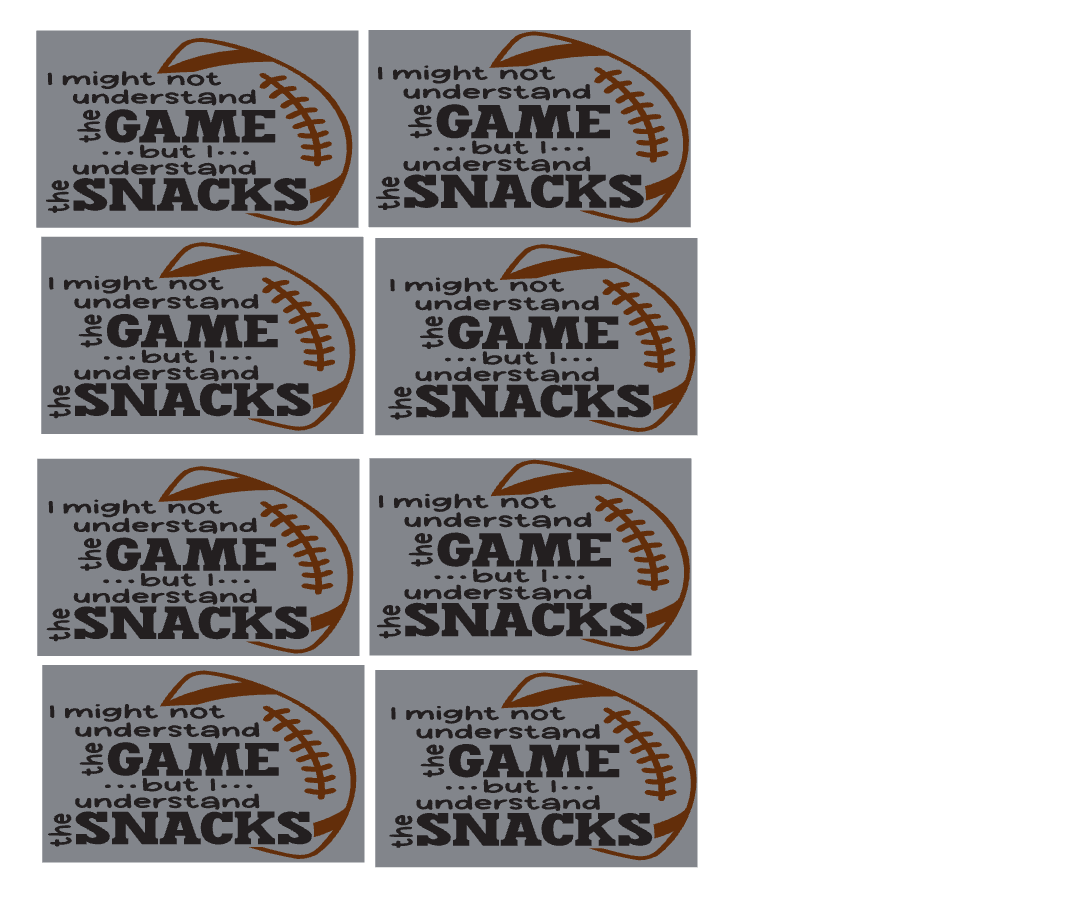
Game Day Snack Queen – Print & Cut Sticker Tutorial
(Ideal Studio + HTVRont Sticker Vinyl + Loklik iCrafter)
Step 1: Design in Ideal Studio
- Open Ideal Studio → New canvas.
- Add text: “Game Day Snack Queen ”.
- Use a fun combo: bold font for “Game Day,” script for “Snack Queen.”
- Add elements: crown , football/baseball, stars, or snacks.
- Select all → Weld/Group design.
- Add an offset (outline) around design (0.08–0.12 in) for sticker border.
- Change offset color to white (classic sticker look).
- Make sure design is set to Print then Cut.
- Resize (3–4 inches is ideal for stickers).
⸻
Step 2: Print
- Load HTVRont printable sticker vinyl into printer (correct side).
- In Ideal Studio → Click Print.
- Turn ON bleed for clean edges.
- Use high-quality print settings.
- Let ink dry 5–10 minutes before cutting.
⸻
Step 3: Cut with Loklik iCrafter
- Place printed sheet on cutting mat (straight + smooth).
- Load into Loklik iCrafter.
- In Ideal Studio → Select Print & Cut.
- Machine will scan registration marks automatically.
- Choose Sticker Paper setting.
- Start cut.
⸻
Step 4: Weed & Peel
- Remove mat after cutting.
- Peel away excess vinyl around stickers.
- Carefully lift each sticker from backing.
⸻
Step 5: Optional Finish
- Add laminate sheet before cutting for waterproof stickers
- Burnish (press down) laminate to avoid bubbles
⸻
Pro Tips
- Good lighting helps sensor read registration marks
- Don’t cover marks with laminate
- Test cut first if using new material
- Keep designs simple for clean cuts