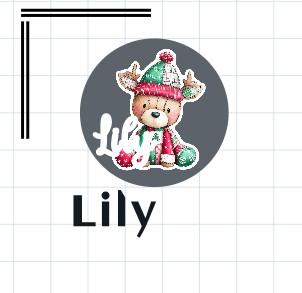
Hi there. I’ve designed and saved a sticker with a system font and when I reopen the saved image from my library the font hasn’t saved but the offset has. The font has saved as standard loklik Aclonica font. Thing is I cant always remember the system font I used so how do I get it to save as I designed it with the same font? Thankyou
6 Likes
Hi Pam @P_G I just done a test to see how this would behave on my PC. I placed an image on my canvas and picked a random font from my “system fonts” then saved the design with the new font.
2 things happened
1/ initially, viewing it in My Zone it looked like it saved
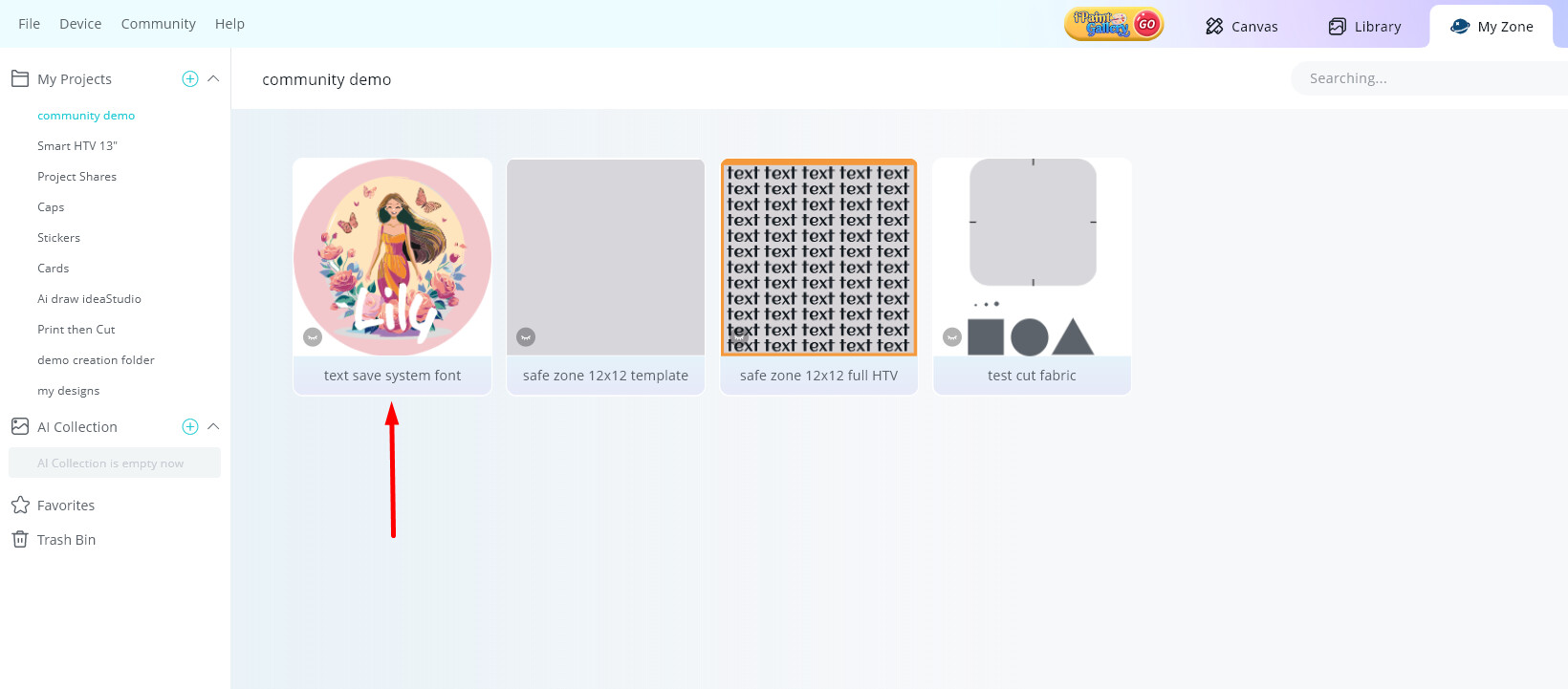
2/ but when i Added it to Canvas, it reverted back to the default font.

I thought about it for a while, and I think it is because the LLiS software does not have access to the system font so it cannot save it as part of the design
SUGGESTION: so you don’t forget the system font you used here’s my tip

4 Likes
Hello @P_G @InkiteeWorkshop is Right. Generally you have to download the font because if you Don’t do that system can be change and use the default font. Try it! 


4 Likes
Yes, so this is true. LOKLiK doesn’t own your system fonts so when it saves the project it reverts all system fonts to LOKLiK default font Aclonica.
A way to get around this is if you select your system font.

Then click combine and subtract crossover
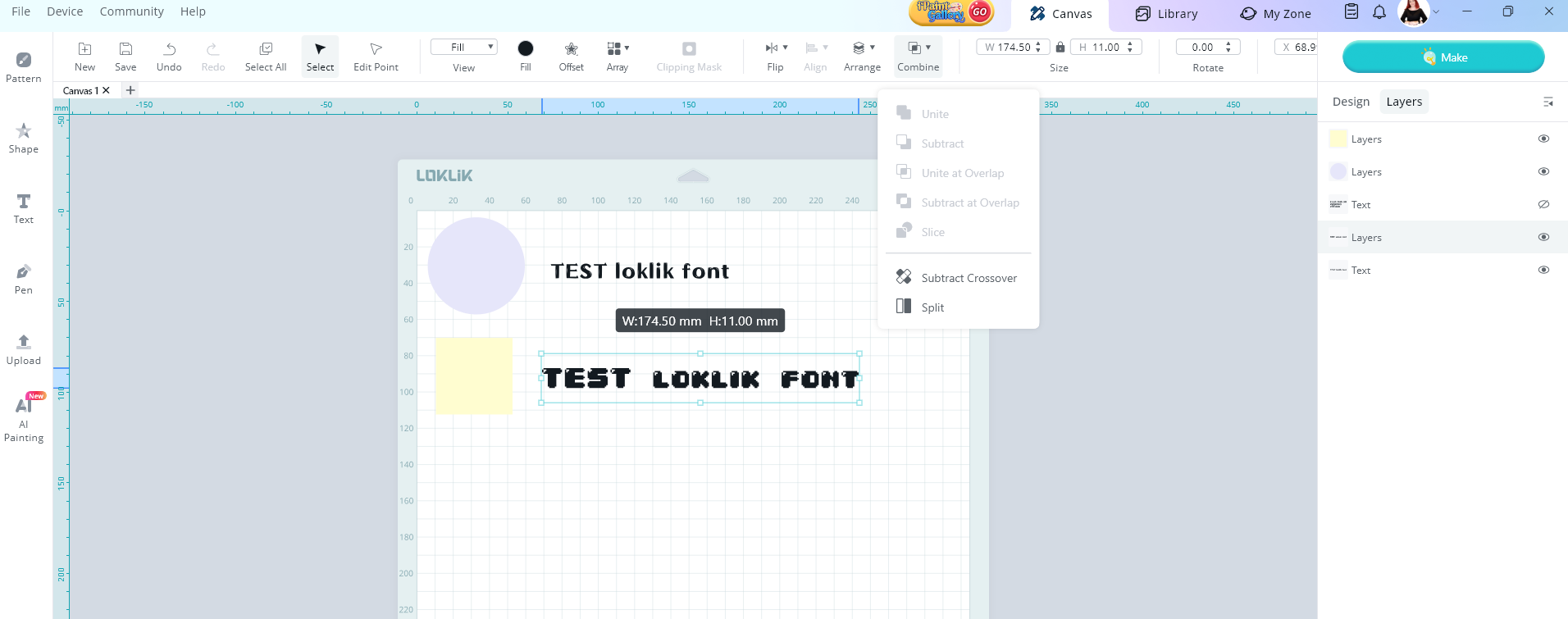
After you save your project and reopen it, your words will be the same. Note after you do this step your words become an object and no longer editable text box, so you can’t change the words without creating another text box. But if you know you will never change the words in that project this works really well. Another process I do is I save a list of fonts and hex codes on one side of my project. Because I use a lot of different fonts in different projects and colours each project I open has a font and hex code so I know exactly what I used. Doing this method you can freely change the words back to the font your used because its saved in that project. When you go to make that project you can just hide the text with the font and hex codes or just don’t select it when you go to make.

I hope this helps you.
6 Likes
Thanks for the tip on the “note” that way you also can remember size 
5 Likes
Perfect coverting the text to a design is a great idea, thanks Belle! 
4 Likes