strong text I cannot believe the difference after finally taking the time to update the firmware on my LOKLiK iCraft cutter! 
My machine was still running on V3 this whole time and my print then cut projects NEVER lined up correctly. Stickers were always slightly off no matter what I tried. Today while cleaning, I found my computer printer cord and decided it was finally time to do the firmware update… and WOW. 
Now my print then cut is lining up PERFECTLY! Clean cuts, accurate borders, and professional looking stickers every single time. I’m honestly so happy I finally did this update because it completely changed my crafting experience!
 Step By Step Firmware Update Instructions:
- Turn on your LOKLiK iCraft cutter
- Connect the cutter to your computer using the printer USB cord
- Open LOKLiK IdeaStudio
- Make sure your machine is detected and connected
- Go to device settings or machine settings
- Look for “Firmware Update”
- Click update and DO NOT unplug the machine during installation
- Wait for the update to fully complete
- Restart your cutter once finished
- Recalibrate your print then cut settings if needed
Major Pros After Updating:
 Perfect print then cut alignment
Smoother cutting performance
Better machine response
More accurate sensor reading
Cleaner sticker edges
Faster communication with software
Less wasted vinyl and sticker paper
More confidence while crafting
If your cuts have been off like mine were, CHECK YOUR FIRMWARE VERSION! This update seriously made a huge difference for me and now I can finally make beautiful stickers, labels, tags, and more the way I wanted to from the beginning! 

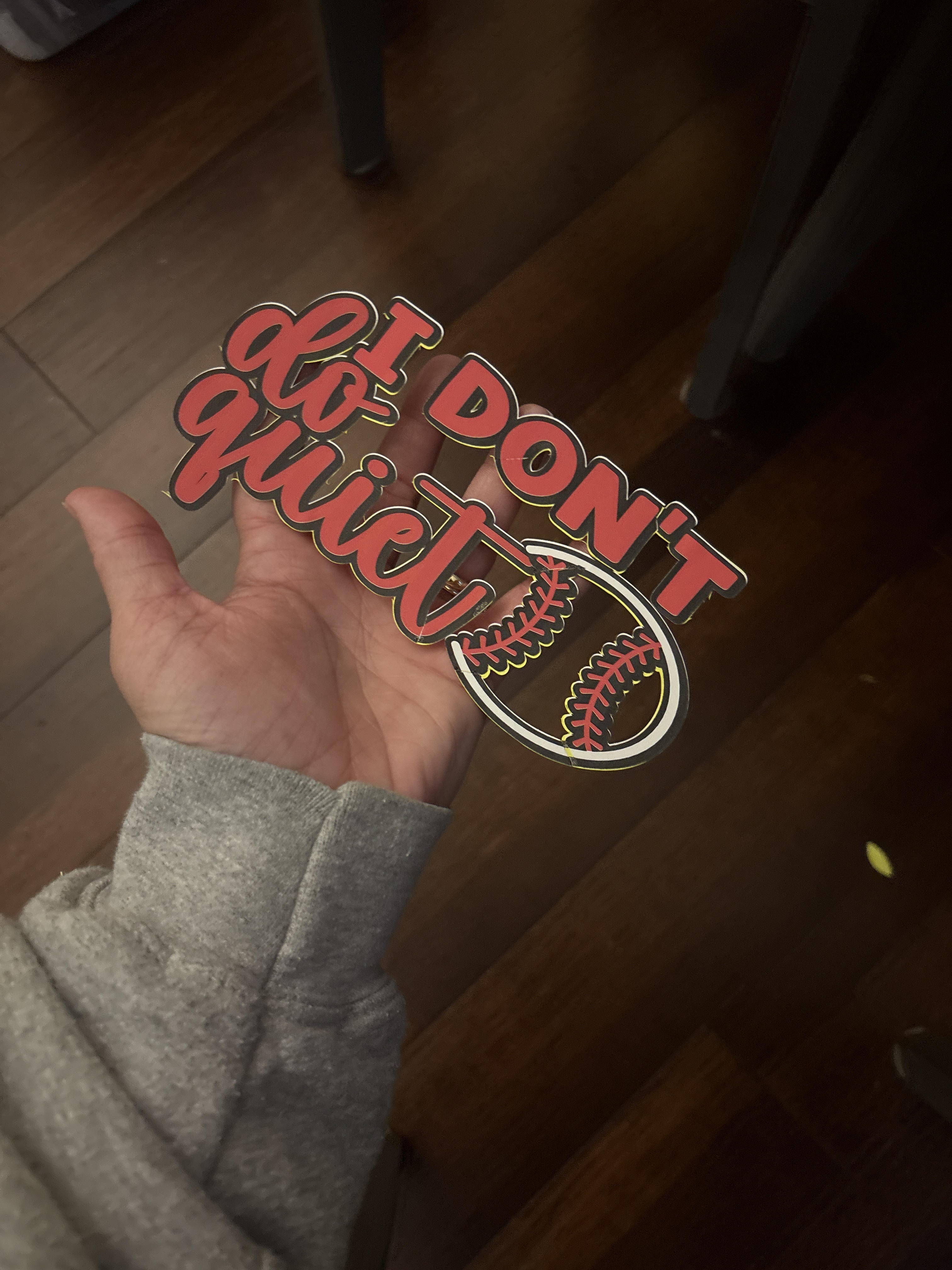
The outline is a cardstock base I put it on!