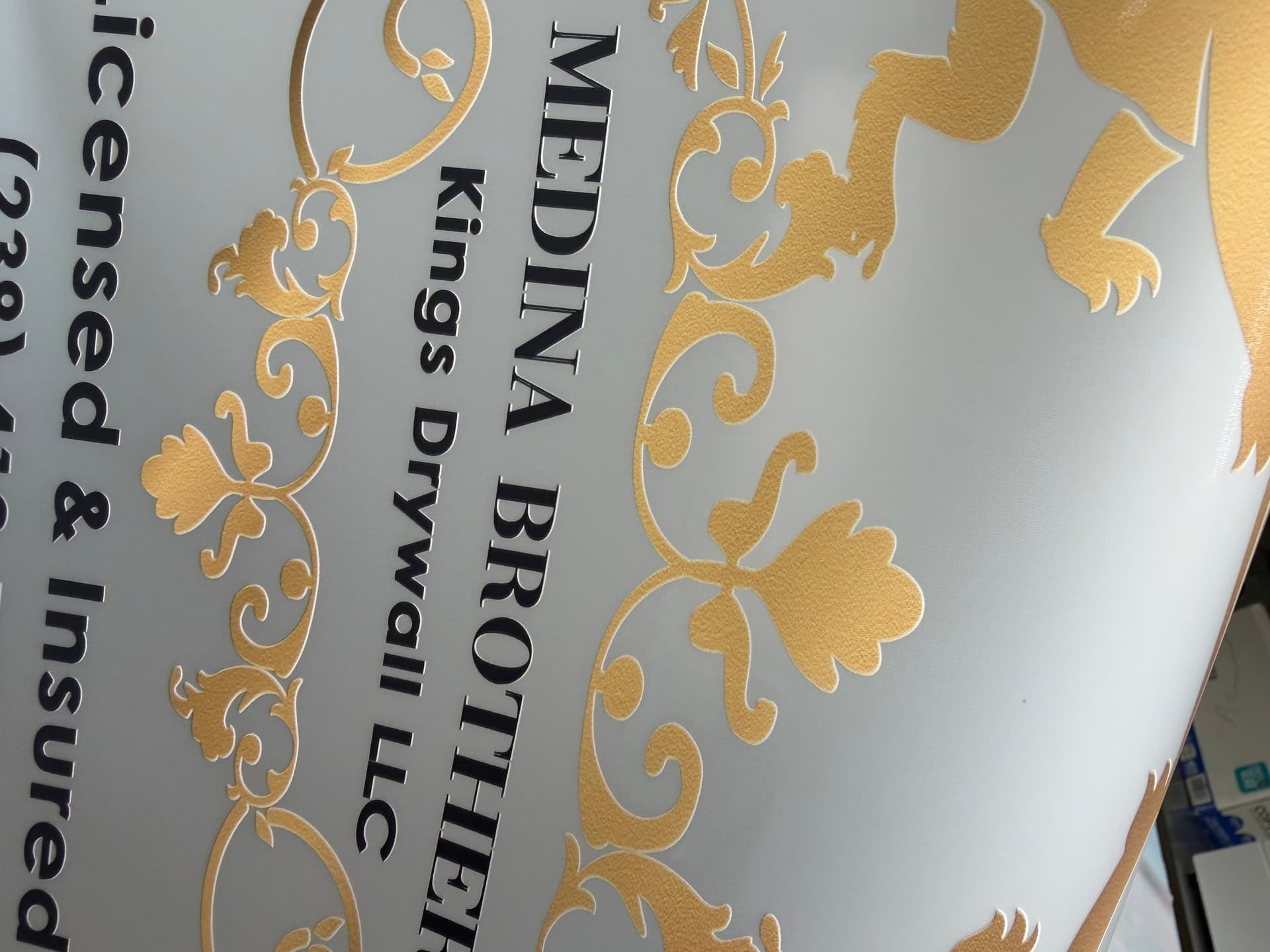
Hello, does anyone have any tips on how to remove the white outline of the prints? I have attached an image for reference. It’s the white around the letters and the image itself. Thank you,
2 Likes
This usually comes down to how the white ink layer lines up with your color layer. You can go step by step and see what helps in your case:
Step 1 | Quick offset check
First, try printing an image without a white border and see if the issue still shows up.
If it does, you can play around with the offset values a bit:
- Try:
1, 12, 2-1, -1-2, -2
- Print them one by one and compare
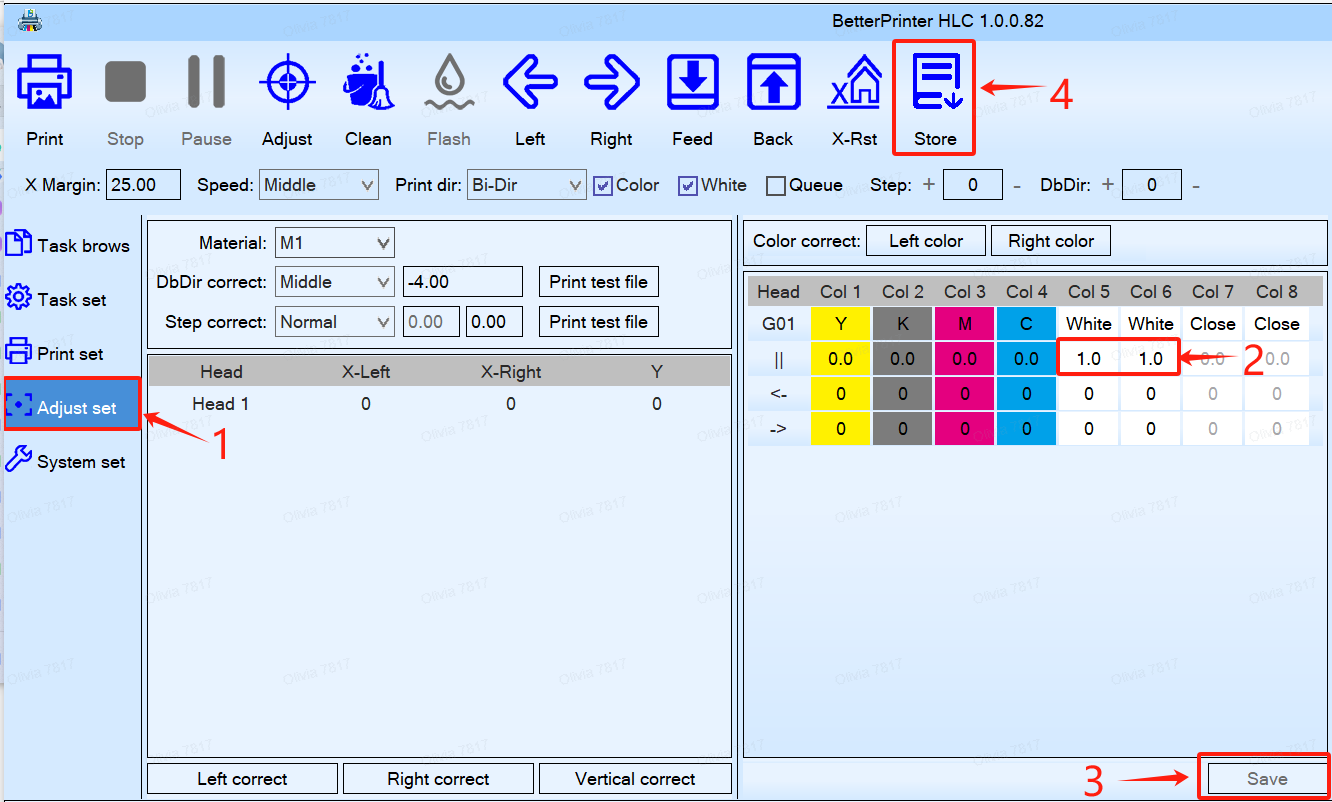
Sometimes a small adjustment here already helps reduce the white edge.
Step 2 | Adjust the white ink shrink
If you’re still seeing that outline, it’s likely the white ink layer is slightly larger than the color layer.
In RIIN:
- Go to Spot Color settings
- Find Shrink
- Try setting it to -0.5 mm

What this does is pull the white layer slightly inward, so it doesn’t peek out from the edges after heat pressing. You can tweak the value a bit if needed.
Step 3 | Tweak the file in Photoshop (for a cleaner result)
If you want to clean it up further, you can adjust the image itself before printing:
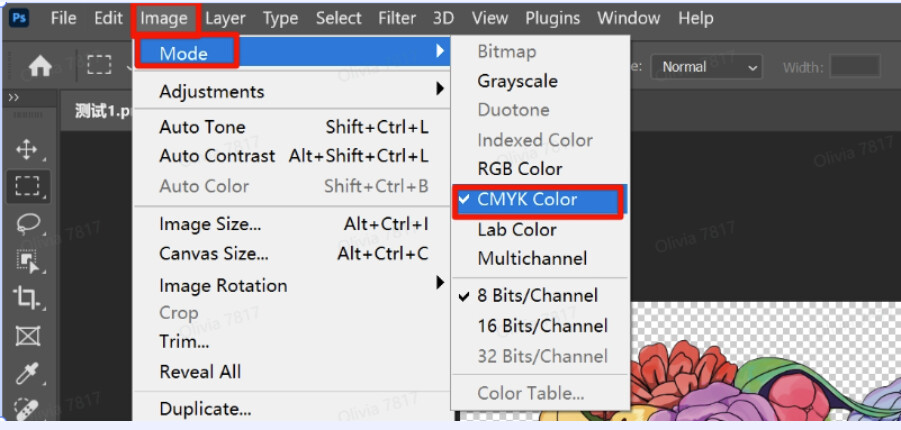
- Open the image in Photoshop and switch to CMYK mode
- (Image > Mode > CMYK Color)*
- Select your design, then go to:
- Select > Modify > Contract*
Set it to around 8–12 px

-
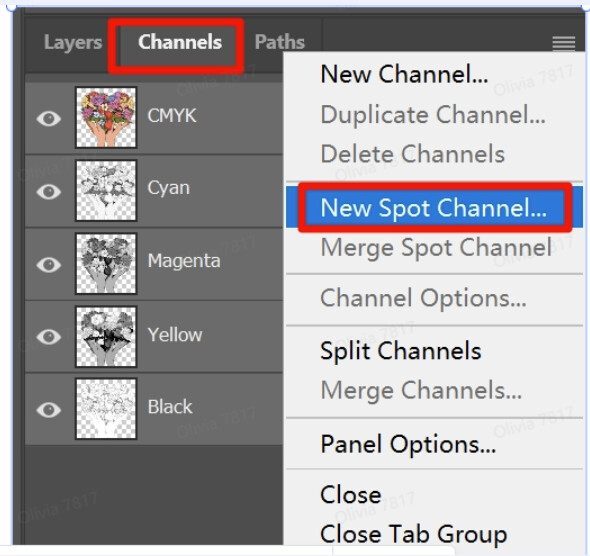
Go to Channels > New Spot Channel
-
Save as a PDF
-
Import into RIIN and set:
- Data Source → Spot Color
- Input Channel → your spot channel
- Turn off:
- Transparent as white
- Alpha as white
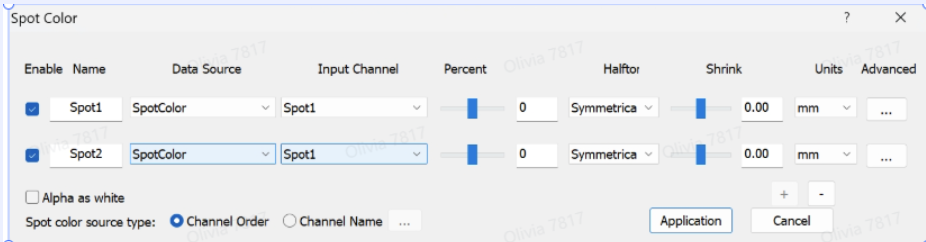
Then print again and check the result.
2 Likes