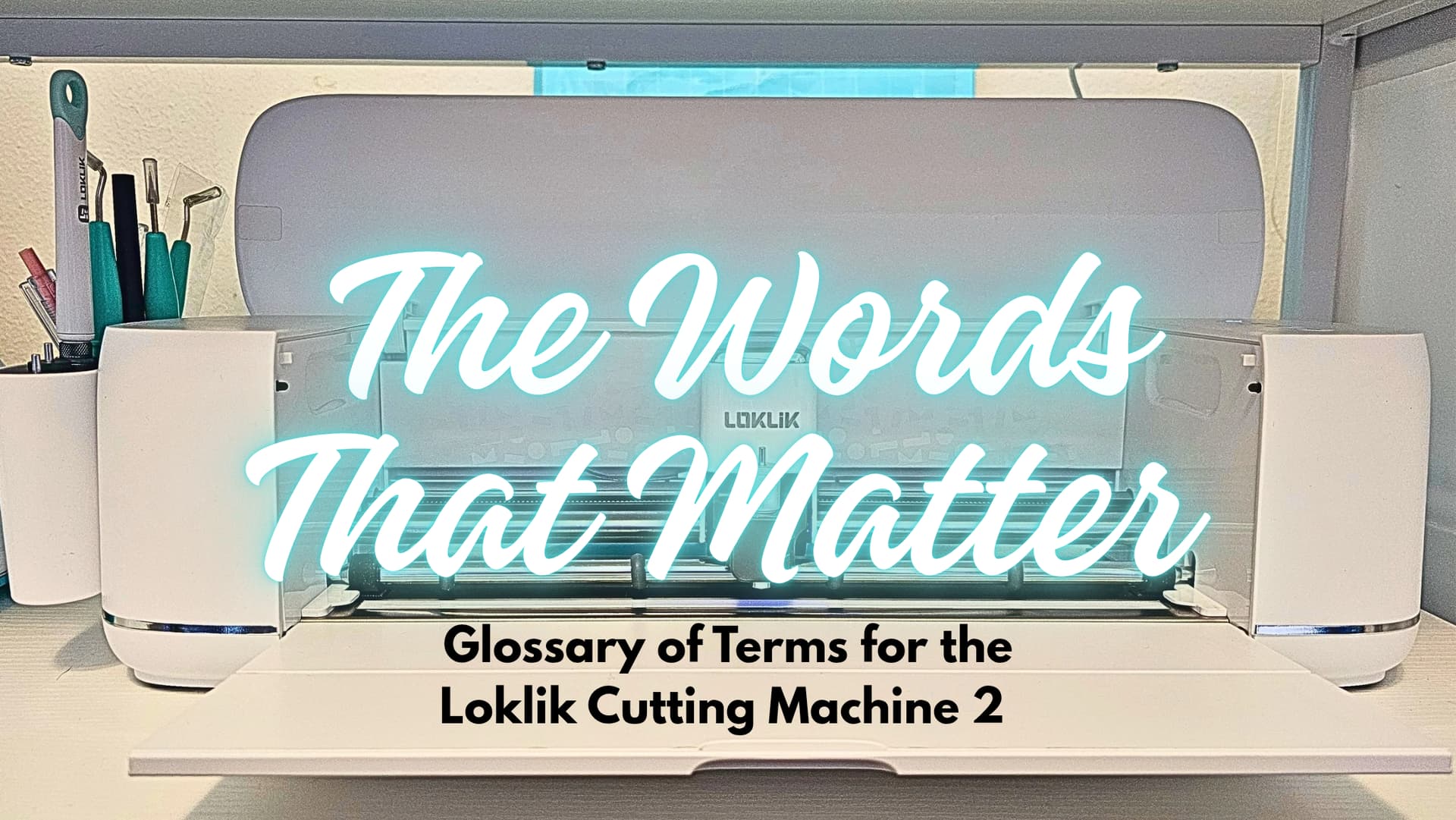
So many people in our community are excited to learn their machines, but they get tripped up by the terminology long before they ever get to the fun part. I kept seeing the same questions, the same mix‑ups, and the same “wait… what does that mean?” moments, and I realized we needed one place where everything is explained in simple, everyday language. This glossary is here to help you understand the terms we use all the time in the Loklik crafting world, so you can follow tutorials, ask questions confidently, and feel right at home in the community as you grow.
Glossary of Terms
Materials & Vinyl Terms
Adhesive Vinyl (Permanent/Removable)
Vinyl with a sticky backing used for decals, labels, and smooth surfaces. Permanent vinyl is long‑lasting; removable vinyl is repositionable.
Heat Transfer Vinyl (HTV)
Vinyl that requires heat and pressure to bond to fabric or compatible blanks. The adhesive activates when pressed.
Printable Vinyl / Printable Sticker Paper
Material you run through an inkjet printer before cutting. Used for stickers, labels, and full‑color designs.
Sublimation
A process where special ink turns into gas under heat and bonds permanently to polyester surfaces or poly‑coated blanks.
Transfer Tape
A clear or paper tape used to lift adhesive vinyl off its backing and place it onto your blank.
Burnish
Rubbing firmly over vinyl or transfer tape to help it stick and remove air bubbles.
Weed
Removing the excess vinyl around your design so only the intended shapes remain.
Apply (Vinyl Application)
Placing adhesive vinyl onto your blank using transfer tape, then burnishing it so it bonds smoothly.
Mat / Cutting Mat
A reusable sticky mat that holds your material in place while cutting. Even if your machine supports matless cutting, mats are still used for thinner or flexible materials.
Matless Cutting
Cutting directly on the machine without a mat. The material feeds through the rollers on its own. Not all materials support matless cutting.
Cutting Tools / Machine Basics
Fine‑Point Blade
A standard cutting blade used for everyday materials such as adhesive vinyl, HTV, cardstock, and paper. This is the blade most projects use and is ideal for clean, detailed cuts on thinner materials.
Deep‑Cut Blade
A standard 60° blade used for regular cutting tasks that require a slightly steeper angle. It can handle everyday materials and some slightly thicker substrates, but it is not the specialty blade for dense or heavy materials.
Deep‑Point Blade
Loklik’s specialty blade designed for thicker or tougher materials. This blade is intended for cutting denser substrates that need more pressure and a steeper cutting angle than a standard blade. Use this blade when working with materials like faux leather, craft foam, or other heavy‑duty surfaces.
Weeding Tool
A handheld tool with a pointed or hooked tip used to remove unwanted vinyl pieces from your design after cutting. This process is called “weeding,” and the tool helps lift small or detailed areas cleanly.
Carriage / Tool Holder
The moving clamp on the machine that holds your blade, pen, or other tool. The carriage travels along the tool path to perform cutting, drawing, or scoring actions.
Blade Housing
The small cylindrical holder that contains the cutting blade. It sits inside the carriage and allows the blade to swivel as the machine cuts.
Rollers
The wheels inside the machine that grip and guide your mat or material as it loads and moves during cutting.
Load / Unload Buttons
The controls used to feed the mat or material into the machine (load) and release it after cutting (unload). These terms are universal across cutting machines.
Cut Strip / Cutting Strip
The long, narrow strip beneath the blade path that protects the machine from blade pressure during cutting. Over time, this strip can show marks from normal use.
Drive Bar / Roller Bar
The metal bar that the carriage slides along. It allows the tool holder to move left and right during cutting.
Scoring Stylus
A tool used to create crease lines for folding. The scoring stylus sits in the pen holder and works with the machine’s drawing function to make clean, accurate score lines for cards, boxes, and paper crafts.
Pen / Drawing Pen
A pen placed in the pen holder so the machine can draw instead of cut. Used for writing, sketching, labeling, and decorative line work.
Pen & Scoring Stylus Housing
The single tool holder for the machine that holds either the drawing pen or the scoring stylus. Both tools use the same housing piece. This housing allows the machine to switch between drawing and scoring functions without needing a separate tool slot/clamp or housing.
Foiling Tool
A tool set used to apply metallic foil to your designs. The foiling tip uses pressure (not heat) to press foil onto cardstock, faux leather, and other compatible materials. Creates shiny, decorative accents.
Foil Tool Housing
The tool holder that the foiling tip sits inside before being placed into the machine’s clamp. This housing allows the machine to apply pressure and follow the foil tool path when the Foil mode is selected in the software. It works the same way the blade housing and pen/stylus housing do — it positions the tool correctly so the machine can operate it.
Cutting Methods
Kiss Cut
A cut that goes through the vinyl layer but not the backing. Used for stickers, decals, and anything that stays on the sheet.
Die Cut
A cut that goes through both the vinyl and the backing, creating a fully cut‑out shape.
Cutting Force
How hard the blade presses down while cutting. Higher pressure is used for thicker materials.
Cutting Speed
How fast the machine moves while cutting. Slower speeds help with detailed designs.
Passes
How many times the machine cuts the same path. More passes help with thicker or tougher materials.
Software Tools & Workflow
Application (Software)
The design software used to create, edit, and send projects to your cutting machine. In this glossary, “application” refers only to the software — not vinyl transfer.
Canvas
The main workspace where you arrange and edit your design.
Offset
Creates a duplicate outline around or inside your shape. Used for stickers, shadows, and layered designs.
Duplicate (Copy & Paste)
Make an exact copy of your selected object.
Distribute
Evenly space multiple objects horizontally or vertically.
Align
Positions objects relative to each other (center, left, right, top, bottom).
Array
Automatically duplicates an object into evenly spaced rows, columns, or grids. Ideal for stickers, labels, and patterns.
Make Screen
The screen where you set up each operation before cutting. On the Make Screen, you choose your material type, adjust material parameters (force, speed, passes), select the operation type (Cut, Draw, Score, Foil), and confirm the tool mode. These settings are used to build the Task List. Once everything is set, you press Continue to move to the Task List.
Tool Mode
The operation type the machine will perform for a specific step. Common tool modes include Cut, Draw, Score, and Foil. The software uses tool modes to tell you which tool to load and how the machine will process each part of your design.
Material Parameters
The settings the software uses to control how the machine interacts with your chosen material. Material parameters include material type, force, speed, passes, and blade type. These values determine how deeply the blade cuts, how fast the carriage moves, and how the machine handles different materials.
Task List
The final screen before your machine begins working. The Task List shows every operation your project requires — such as Cut, Draw, Score, or Foil — each listed in a numbered order. However, you can choose which task to run at any time. Each operation appears as its own task with a Start button, and you decide which task to begin first. The machine waits for you to load the correct tool and start each operation manually, allowing you to run the tasks in order or out of order depending on your workflow.
Operation Order
The sequence in which the machine performs each tool mode in your project. The Operation Order is shown in the Task List and ensures that actions like scoring, drawing, foiling, and cutting happen in the correct order for your design.
Boolean Operations
Combine (Boolean Operations)
The category of tools in IdeaStudio that change how shapes interact when they overlap. These tools merge, remove, or separate shapes based on their intersections.
Unite
Merges two or more overlapping shapes into one single shape. All overlapping areas become one continuous outline.
Unite at Overlap
Merges only the overlapping portions of selected shapes, leaving non‑overlapping areas unchanged.
Subtract
Removes the top shape from the bottom shape, cutting out the overlapping area.
Subtract at Overlap
Removes only the overlapping portion where shapes intersect, without affecting the rest of the shapes.
Subtract Crossover
Removes the overlapping interior lines between connected script letters or shapes, creating one continuous cut path. This is the tool used to “weld” script text in IdeaStudio.
Slice
Cuts shapes into separate pieces wherever they overlap. Each resulting piece becomes its own shape.
Split
Breaks a single shape into multiple independent pieces based on internal cut lines or divisions.
Layers & Groups
Layers
Individual, stackable parts of your design that can be selected, edited, hidden, or rearranged independently.
Layer Groups
Folders that organize multiple layers together without merging them. Useful for complex designs.
Group
Temporarily links objects so they move and resize together. Does not merge or change how they cut.
Image Editing Panel
(formerly called Image Matting)
Image Editing Panel
The workspace where you clean up and prepare images before they become layers on your canvas. Includes background removal, erasing, cropping, and adjustments.
File Types & Image Types
SVG (Scalable Vector Graphic)
A vector‑based file format made of paths instead of pixels. SVGs scale cleanly without losing quality and are the most common file type used for cutting machines.
Memory Shortcut:
You can associate the S with scissors for cut file.
PNG
A pixel‑based image file that supports transparency. Commonly used for Print Then Cut because it allows clean edges around artwork.
Memory Shortcut:
You can associate the P with print for print file.
JPG / JPEG
A pixel‑based (raster) image format that does not support transparency. JPGs almost always have a solid white or colored background, which becomes part of the image. Because of this, JPGs often require cleanup in the Image Editing Panel before cutting. They are commonly used for photos, clipart, and full‑color artwork, especially in Print Then Cut projects.
Memory Shortcut:
You can associate the P with photo/print, and photos are printed — so JPG is a print file.
Raster Image
A pixel‑based image (PNG, JPG). Raster images are made of pixels and must be cleaned up before cutting because they are not made of vector paths.
Vector
A line‑based graphic made of paths and points. Vectors are fully editable and required for clean cutting.
Output & Processing Terms
Print
Sending your design to a real printer so it can add color, images, or details onto paper, sticker paper, or printable vinyl. The cutting machine does not print — it only cuts around printed designs.
Print Then Cut
A two‑step process: your printer prints the artwork, then the cutting machine reads registration marks and cuts around it.
Registration Marks
Printed marks your machine scans so it knows where to cut during Print Then Cut.
Calibration
Aligning your machine so it cuts precisely around printed designs.
Draw
Using a pen or marker in the machine to create lines, lettering, or details. Drawing is not printing.
Score / Scoring
Creating a crease line for folding. Used for cards, boxes, and paper crafts.
Foil
Using a pressure‑based foil tool to press metallic foil onto your material. No ink, no heat, no printing.
Press (Heat Pressing)
Applying heat and pressure to bond HTV or sublimation ink to a blank. Pressing is bonding — not printing.
Continue Learning: Parts 1 and 2 of This Series
If you’re just getting started with your Loklik Cutting Machine 2, you may find the first two parts of this series helpful as well. For a full walkthrough of the basics and beyond, you can read:
Part 1: 10 Things to Know When Starting With the Loklik Cutting Machine 2
Part 2: 10+ Advanced Things to Know When Starting With the Loklik Cutting Machine 2
This glossary completes the three‑part beginner series for the Loklik Cutting Machine 2. I hope it helps you feel more confident as you explore the software and tools. Feel free to bookmark them for easy access in the future.
If there are any other terms you’ve heard or seen and would like them to be added, leave a suggestion in the comments, & I will add it to the glossary.

