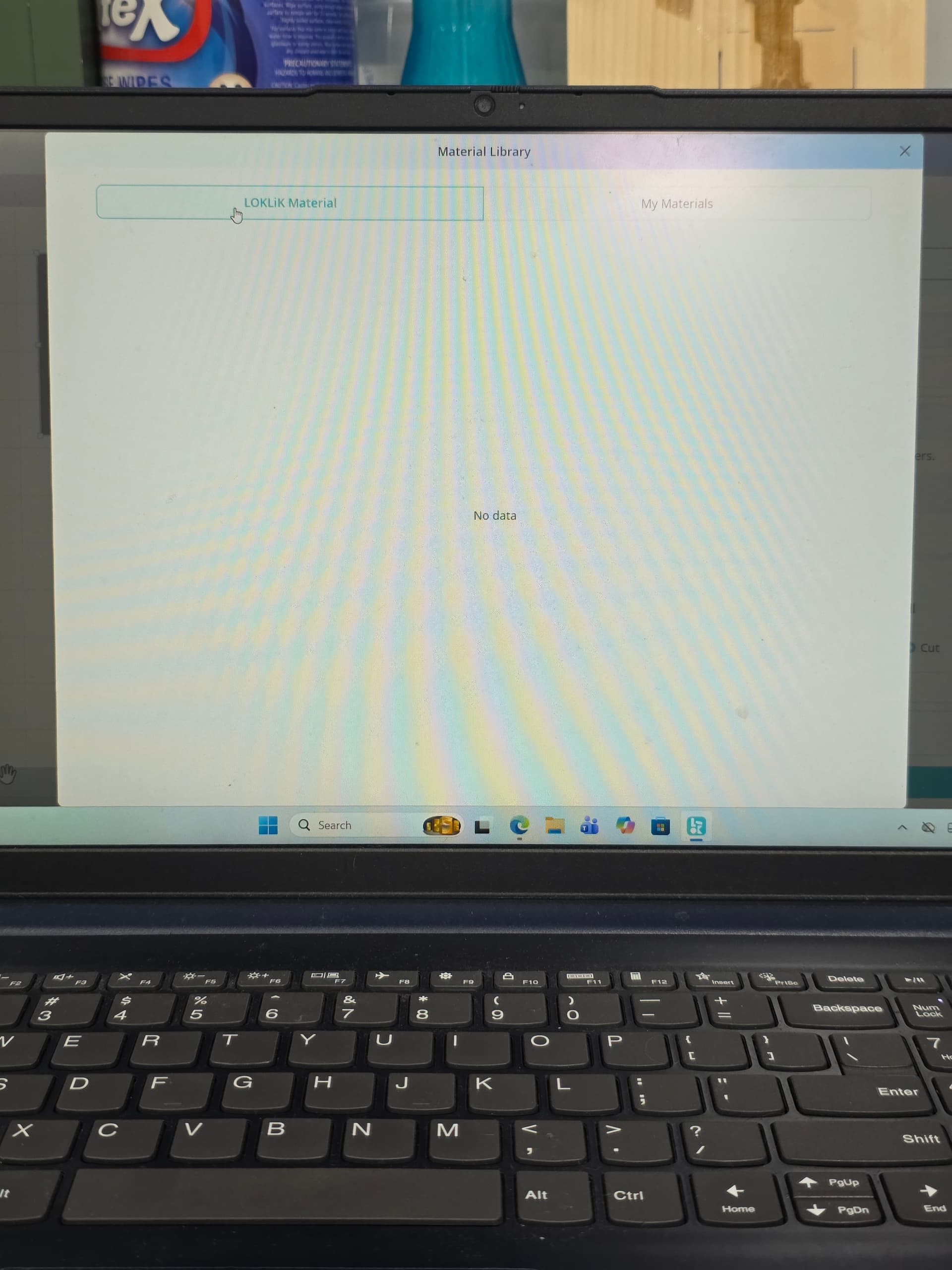
Hello everyone, I am using the loklik Ideastudio and yesterday when i turned on my machine and tried to cut something, none of my materials are coming up at all. They show when i try to engrave
But not when i try to cut. Does anyone know how to fix this issue?
4 Likes
Hi, @Denisse_Medina! This is definitely strange. Does it show any materials under My Materials?
2 Likes
No it is not and its only for cutting. The engraving part does show materials but cutting doesnt
3 Likes
Actually, it appears this has something to do with a new software glitch. Some people have been running into this lately, so you’re not alone. If IdeaStudio is showing all the engraving materials but no cutting materials, that usually means the software didn’t fully load the cut profiles. A few things can cause it:
• The machine didn’t fully connect, so IdeaStudio only loads the engraving library.
• The software accidentally loaded the “engrave‑only” device profile.
• The material library didn’t load on startup.
• The layer is still set to Engrave, so the Cut materials stay hidden.
• Or the software just needs an update — there was a known bug where cut materials disappeared.
What usually fixes it is closing IdeaStudio, unplugging the USB, power cycling the machine, then reopening the software and reconnecting. If that doesn’t bring the cut materials back, removing and re‑adding the device in IdeaStudio normally does the trick.
3 Likes
Thank you
3 Likes
You’re welcome. I just edited my response above, as I just learned of a new glitch. Try the steps listed and let me know how it goes.
1 Like
ughh I tried all of that AND nothing and now I notice that when I turn it on, it beeps 3 times and before it would only beeps 1 time.
1 Like
Ok, do you have the cover version or the one without the cover?
1 Like
cover
3 Likes
Ok, thank you for that information. Since you have the covered version of the iEngrave, the behavior is slightly different, but the three beeps still mean the machine isn’t able to complete its homing cycle. When that happens, IdeaStudio won’t load the cut materials at all, because it won’t enable cutting until the machine is in a safe, fully‑homed state.
Try this part first:
• Turn the machine completely off
• Gently slide the laser head to the center of the bed
• Turn it back on and watch the homing sequence
On the covered model, it should move left, then up, settle in the top‑left corner, and then shift slightly away. If it beeps three times again or stops early, it means it’s still not reaching one of the internal switches.
Once it can home normally again, the cut materials should show back up in IdeaStudio. The software won’t load them until the homing error is cleared.
Let me know what it does when you power it back on from the center and we can go from there.
1 Like
Just did it and it does not move like it used to. it stays in the center
2 Likes
It not moving at all from the center means it’s not even starting the homing sequence. On the covered iEngrave, that usually happens when the machine isn’t fully initializing. It’s different from a normal homing error — this is the machine not entering homing mode at all.
A few things can cause that:
• The lid sensor isn’t registering the lid as closed
• The machine didn’t complete its startup handshake
• The firmware didn’t load correctly after all the reconnecting
• The machine is stuck in a protection state
Try this:
- Turn the machine completely off
- Open the lid fully
- Close the lid firmly so the sensor definitely engages
- Then turn the machine back on and watch if it tries to move left or up
If it still just sits in the center and beeps, then it’s not detecting the lid sensor or it’s stuck in a protection mode. At that point, it won’t home and it also won’t load cut materials in IdeaStudio until the homing issue is cleared.
Let me know what it does after trying that and we can narrow it down.
1 Like
Its still stuck in the same place😞
2 Likes
If it’s powering on but the head just stays in the center and doesn’t even try to move left or up, that means it’s not entering the homing sequence at all. On the covered iEngrave, that usually happens when the machine isn’t detecting the lid sensor or it’s stuck in a protection mode. When that happens, it won’t move, won’t home, and it also won’t load the cut materials in IdeaStudio.
At this point, the machine should at least attempt to move when it powers on, so the fact that it’s staying frozen means something in the startup safety chain isn’t being detected. That’s not something you can fix from the software side anymore.
You’ll want to reach out to Loklik Support (support@loklik.com), and let them know the machine won’t enter homing mode and stays centered on startup. They’ve been replacing or repairing units when this happens because it’s usually a sensor or mainboard issue.
I know that’s frustrating. Hopefully support can get this resolved for you soon. Let us know how it goes with support.
1 Like
its so weird because it will let me engrave, but when I put to cut the materials just wont load. I just acted like it was gonna engrave and it moved it to the top left like usual. I did reach out but they take forever to reply
2 Likes
If it’s still engraving normally and moving to the top‑left like it should, then the machine itself is okay — the homing switches and motors are working. What’s happening now is that IdeaStudio isn’t recognizing your machine as the cut‑capable model during the connection handshake. When that happens, it loads the engraving materials but completely hides the cutting materials.
That’s why engraving still works but the cut materials won’t load no matter what you do.
This usually means the device profile inside IdeaStudio got corrupted. The fix that works most often is:
• Go into the iEngrave’s Device Manager in IdeaStudio (click the cog/device settings button)
• Remove the iEngrave completely by clicking Delete in the bottom left corner
• Close IdeaStudio
• Power cycle the machine (turn the machine completely off, wait a few seconds, turn it back on)
• Reopen IdeaStudio and add the device again so it reloads the correct model profile
Once IdeaStudio recognizes it as the cut‑capable version again, the cut materials should show back up.
Let me know if removing and re‑adding the device changes anything.
1 Like
ughhh still doing the same thing. I even Uninstalled the program earlier. I just did what u advised and nothing has changed
2 Likes
im so ready to box up the machine and send it back
2 Likes
the issue is definitely just on the PC because, I just tried it from my phone and it shows the materials
2 Likes
I know this has been really frustrating, and you’ve done everything on your end that you can do. At this point it’s not something you caused — it’s just the software not recognizing your machine correctly. Sometimes a unit’s profile gets stuck like this, and no amount of reinstalling or deleting the device will fix it from the user side.
It may take a little bit of back‑and‑forth with Loklik support, but they do honor their warranty and they do replace machines when the software can’t read the device profile correctly. We have plenty of iEngrave users who are completely satisfied with their machines, so this isn’t a normal experience — it’s just an unlucky faulty unit or corrupted profile.
Just be patient with support and let them walk through their steps. They’ll make sure you end up with a machine that actually works the way it’s supposed to.
2 Likes