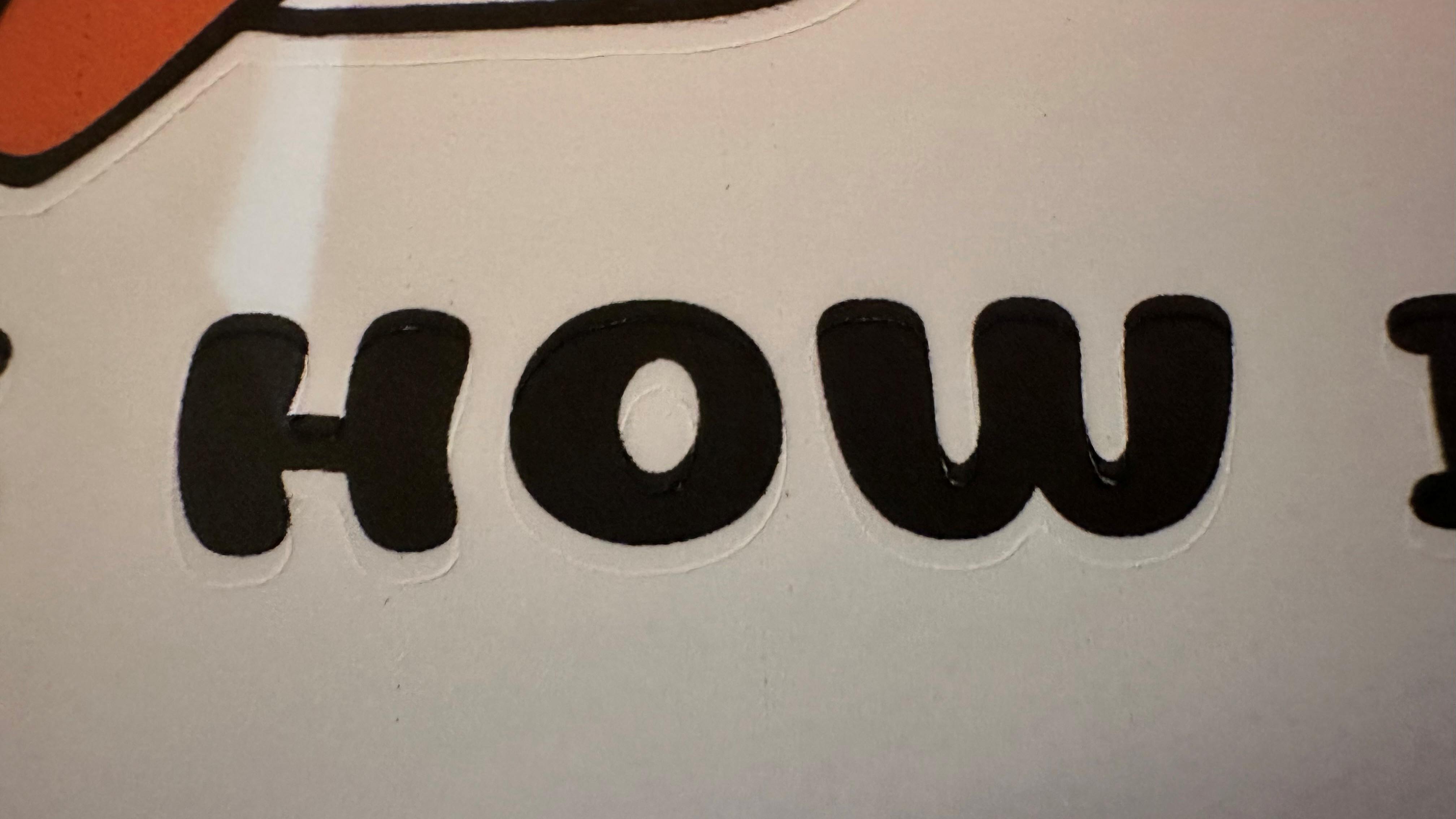
I’ve updated firmware to V7, run calibration and the iCraft still doesn’t cut my design correctly. If anything, it got worse. The design has very little room for error. It requires a perfect cut. Right now, the cut is way off, not even close (see pics). Getting so frustrated. What else do I need to do?
Wayne

5 Likes
Have you run the calibration using the material you intend to use with print then cut?
When you did the calibration did you choose the numbers that corresponded to the line that had a cut in the middle?
Some users have found they received better results when they moved the grey rollers to line up with the registration marks.
Was it cutting better using v6?
3 Likes
Hi and welcome to the community @Wayne_Holt!
I hear your frustration, Wayne—it’s tough when a design needs precision and the machine isn’t cooperating. Since you’ve already updated to V7 and run calibration, a few things you can double‑check:
• Make sure the blade is seated correctly and tightened.
• Verify your material settings (pressure, speed, passes) match the material type.
• Try a test cut with a simple shape to see if the issue is alignment or pressure.
• If the cut is consistently off, re‑run the calibration but also check that the mat/material is loaded straight and firmly against the guides.
In addition, take a look at @BellethehowtoGuru’s questions—they’re great as a reference or guide.
If none of that helps, it may be worth reaching out to support with your calibration results and photos—they can often spot if it’s a firmware issue or a mechanical alignment problem. You’re not alone in this; we’ll get it sorted!
2 Likes
I haven’t. That would mean wasting another piece of the printable heat transfer paper. I’ve tried calibrating, printing and cutting four times now and it hasn’t worked yet. But, I haven’t tried printing the calibration page on a piece of HTP. And I did get the same result before I updated the firmware to V7.
I haven’t found it myself, but is there a place in the settings for the calibration print where you can change the paper size? When you get to the screen where it wants you to print the calibration page it says, “Print calibration chart on the A4 sized Matte Material and click “Next”;”. I only have Letter size, 8.5x11. When the chart prints, the “B” at the bottom of the chart it cut off. Is that because it wants the A4 size paper? I thought maybe that’s why it’s being thrown off.
Going to try the chart on a piece of my HTP now. Ugh! hate wasting it.
Wayne
1 Like
hi @Wayne_Holt firstly i don’t use or waste the paper im using to calibrate, and your’s is so far off, i’d get it calibrated first, you may have to calibrate it 3 or 4 times so just use heavy paper or lightest cardstock.
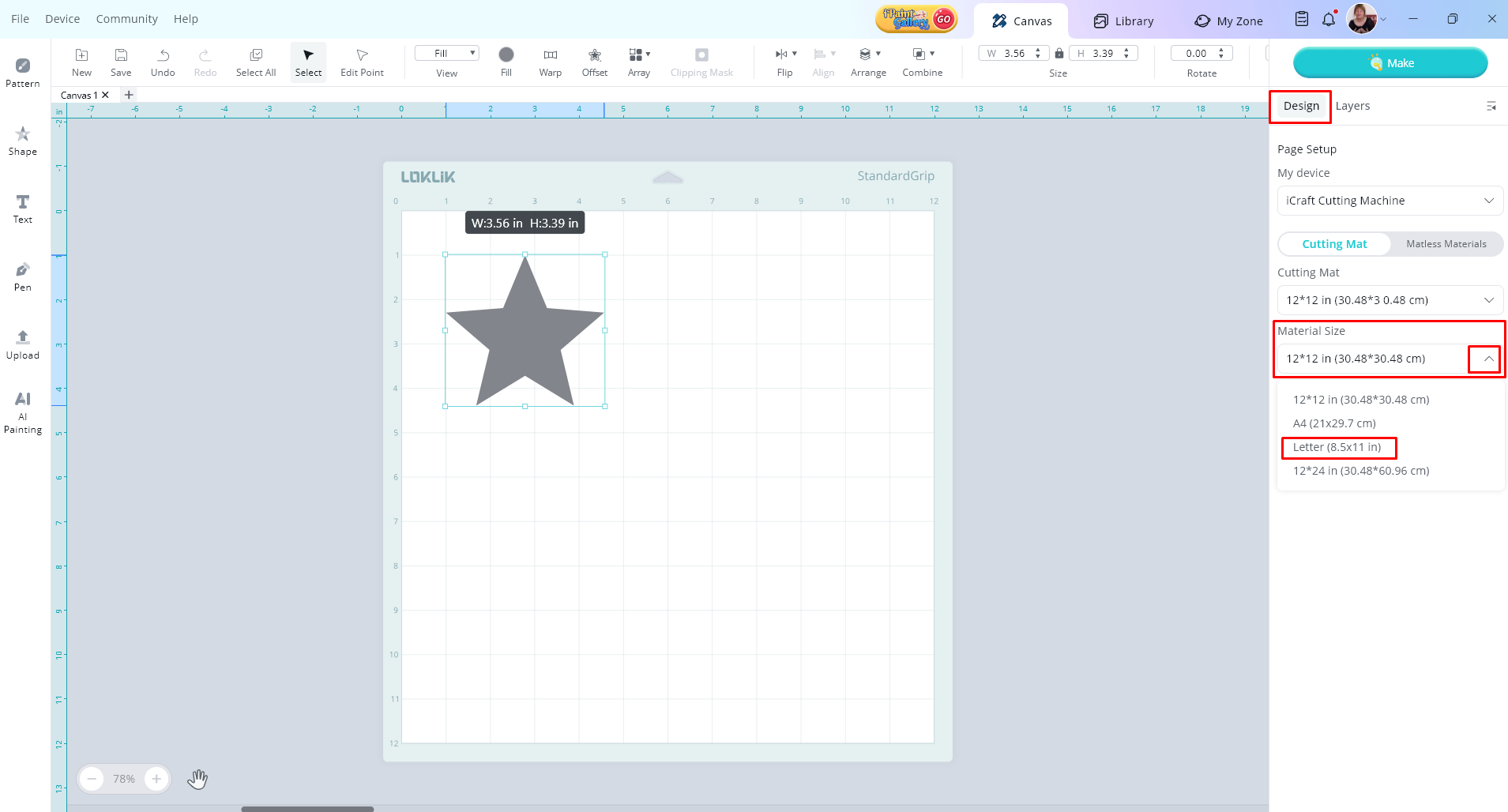
to change the paper, there’s a setting on the design page > Material size > if the B at the bottom is still cut odff, ignore it, it won’t matter at all. it’s the lines you need to concentrate on.
good luck.
P.S i know you have replied to Belle, but her timezone is hours behind mine 
1 Like
• Make sure the blade is seated correctly and tightened.
Done
• Verify your material settings (pressure, speed, passes) match the material type.
Was just using suggested. Now I see that was for HTVRONT and Loklik materials. Will adjust
• Try a test cut with a simple shape to see if the issue is alignment or pressure.
Will try
• If the cut is consistently off, re‑run the calibration but also check that the mat/material is loaded straight and firmly against the guides.
Have tried several times previously
Going to attempt this all again. Wish me luck?
Wayne
2 Likes
Thank you Inkitee, I’ll also try running multiple cals.
Don’t know where everyone is in the world so thank you for chiming in. I’m in western Washington State FYI.
Wayne
1 Like
Yes using the wrong paper size is probably the reason your cut is very far off. After recent updates my testings have found the paper size matters now. Go into device - machine calibration - print then cut - after you have connected to the machine this window should appear. You can change the size of paper here. If you don’t have this option try updating idea studio.

I am on version 2.6.10
I only suggested using the paper you are trying to print then cut as some thick glossy paper can get very weird cuts like this.
1 Like
Also if you have tried heaps of calibrations, I would reset the print then cut calibration before trying again.
Thank you, Belle.
Ok, I updated and it does give the Letter size option now. But two pages after selection “Letter” in the calibration setup it still says print on A4 paper. See pic.

So there is a heap of people having the same problem after they updated to firmware v7. I’ll update mine and see how it goes and troubleshoot things on my end too.
Maybe that’s a typo or artifact that was left by mistake from a previous version of the software.
It might be. I’m running the calibration three times on the same paper. Nice they came up with that in this version. I’ll let you know how it goes.
Wayne
2 Likes
Yeah it is, I’m updating now and I’ll run a calibration too and let you know
2 Likes
Trying another print of the design after the three calibrations. Hope this works. Running out of my printable heat transfer paper with all of these bad cuts.
1 Like
Fingers crossed. I know, it’s so frustrating wasting material 
1 Like
OK my initial cut was way off after doing the firmware update. Doing a calibration now and then I’ll do a test cut
1 Like
Running latest design print through cutter now. 
Has your calibration values been between - 2 and 2 for all your sides?
1 Like
Have you done some simple print then cut test cuts of circles or squares before attempting the design?
1 Like